Dell P2725HE vs LG 27BA850-I: Hub or Video-Call Monitor?
By The Gear Audit Team · Specification research September 10, 2026; manufacturer source and image check September 13, 2026.
Quick answer: connect existing meeting gear or build calls into the monitor?
Choose the Dell P2725HE (210-BMFQ) when you already have a camera, headset or speakers and need its documented 1GbE, DisplayPort MST output, three USB-A ports and downstream USB-C. Choose the LG 27BA850-I when its built-in webcam, microphone and speakers can remove separate meeting devices from a USB-C laptop desk. Both are 27-inch FHD 100 Hz monitors with up to 90 W USB-C power, so display density is a shared constraint.
Its hub makes sense when a separate webcam, headset and speakers already fit the room, while Ethernet and several downstream ports solve the real connection problem.
The integrated webcam, microphone and speakers reduce device count when one fixed monitor position works for calls.
Compare the documented desk roles
| Published attribute | Dell P2725HE | LG 27BA850-I |
|---|---|---|
| Panel and native mode | 27-inch IPS; 1920 × 1080; 100 Hz | 27-inch IPS; 1920 × 1080; 100 Hz |
| USB-C laptop path | DisplayPort 1.4 Alt Mode; up to 90 W | USB-C; up to 90 W |
| Network | RJ45; 1GbE | RJ45 listed |
| Meeting hardware | No built-in webcam, microphone or speakers; optional soundbar | Built-in webcam, microphone and speakers |
| Other documented ports | HDMI, DisplayPort input/output MST, three USB-A and USB-C data/up to 15 W | HDMI, DisplayPort 1.4 and headphone connection on the exact-model US page |
| Best setup distinction | A hub around separate meeting hardware and a planned compatible MST display route | An integrated video-call station with fewer separate devices |
Dell P2725HE: a hub for a desk with separate call gear
Best for: A work desk that already has a suitable webcam and audio setup, and needs Ethernet, several USB peripherals or a compatible DisplayPort MST chain.
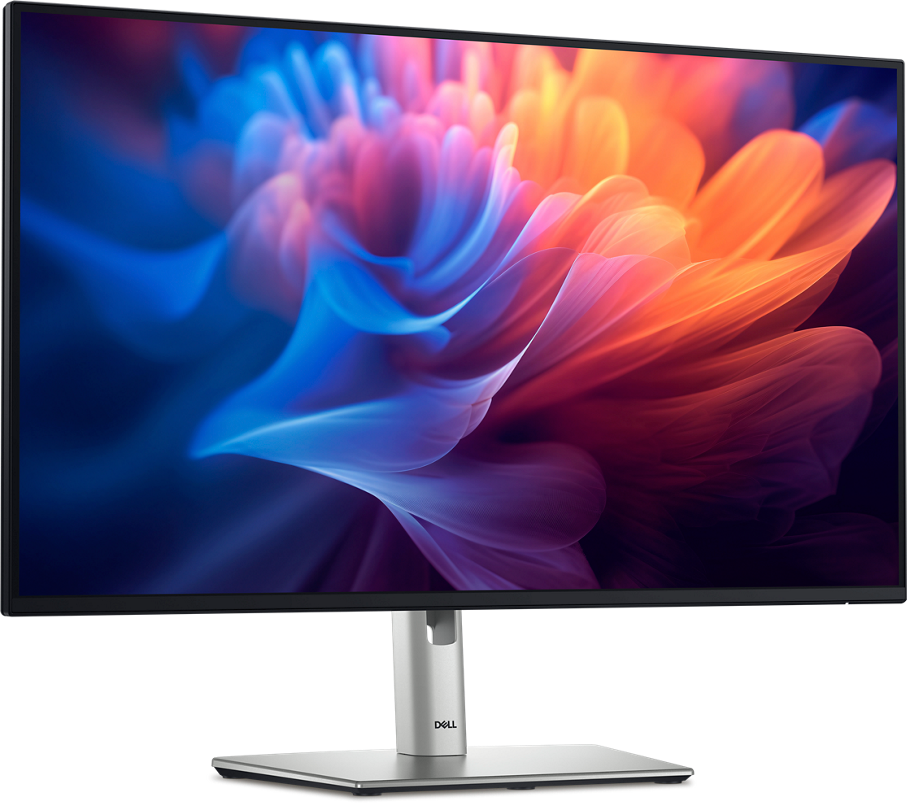
Dell’s P2725HE is a USB-C hub monitor rather than an all-in-one meeting display. Its upstream USB-C route carries video and up to 90 W to a compatible laptop, while 1GbE, three USB-A ports and a downstream USB-C port connect desk peripherals. DisplayPort output supports an MST plan when the host, operating system and second monitor allow it.
Pros
- The hub covers common wired-office connections. Gigabit Ethernet, three USB-A ports and downstream USB-C can connect a keyboard, mouse, storage and network through the monitor.
- Up to 90 W USB-C can reduce laptop cabling. A compatible work laptop can receive video, USB data and power through the main upstream connection.
- DisplayPort output supports a compatible second-display plan. It gives buyers a documented MST route without adding a separate video adapter.
Cons and trade-offs
- Meeting hardware remains a separate purchase or connection. There is no built-in webcam, microphone or speaker system, so calls depend on existing peripherals or an optional soundbar.
- FHD across 27 inches provides less workspace density than higher-resolution alternatives. Buyers who keep several detailed documents open may prefer a 1440p or 4K monitor.
- MST is conditional on the complete display chain. Host, GPU, operating system, cable and second-monitor support all determine whether the planned arrangement works.
Choose something else if: You want one monitor to supply the camera, microphone and speakers for calls. The LG integrates those devices and can reduce the number of items on the desk.
Our recommendation
We recommend the P2725HE when its Ethernet, USB hub and MST output fill known connection gaps and your preferred call gear already exists. Confirm that 27-inch FHD is enough workspace. Choose the LG when removing separate meeting devices matters more than Dell’s documented hub layout.
Source: Dell USA P2725HE / 210-BMFQ specifications. The recommendation is editorial interpretation of documented features.
Price listing: Dell P2725HE.
LG 27BA850-I: an integrated video-call station
Best for: A fixed home-office or meeting position where the built-in webcam, microphone and speakers can replace separate devices.
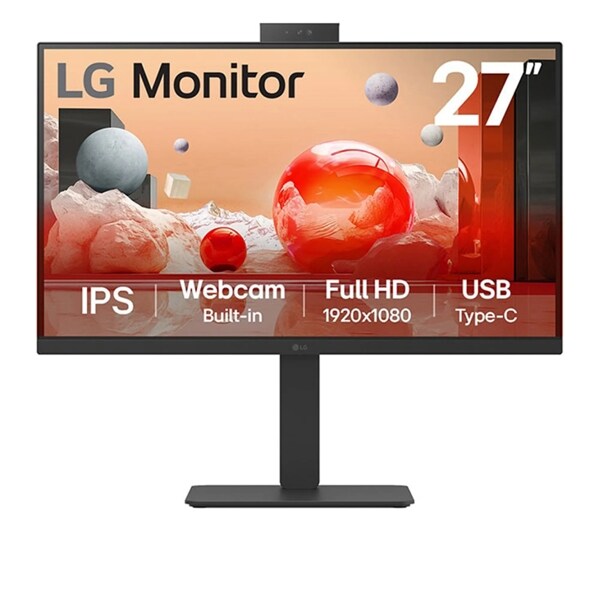
LG’s exact 27BA850-I page describes a 27-inch FHD 100 Hz monitor with an integrated webcam, microphone and speakers, plus USB-C power up to 90 W. That combination can simplify a single-laptop call station. It also fixes the camera and audio position to the monitor, so room layout and preferred framing should drive the choice.
Pros
- Core meeting hardware is built into the display. The webcam, microphone and speakers can reduce separate purchases, USB cables and devices on a compact desk.
- Up to 90 W USB-C supports a one-cable laptop plan. A compatible laptop can use the monitor for its main display connection and power.
- The 100 Hz ceiling offers more desktop refresh than a basic 60 Hz office screen. A compatible source can provide smoother pointer movement and scrolling.
Cons and trade-offs
- The fixed camera position may not suit every room. A separate webcam offers more freedom for eye level, framing and a multi-monitor layout.
- The built-in speakers and microphone reduce flexibility. Buyers with a preferred headset, conference speaker or room microphone may gain little from the integrated hardware.
- Its 27-inch FHD workspace is the same density class as the Dell. Detailed multitasking or close viewing may justify moving to a 1440p or 4K display instead.
Choose something else if: You already own better call hardware or need Dell’s exact three-USB-A, 1GbE and MST arrangement. Those are clearer reasons to choose the P2725HE.
Our recommendation
We recommend the 27BA850-I when one fixed monitor position works for calls and its integrated webcam, microphone and speakers remove equipment you would otherwise buy. Choose the Dell when meeting devices are already solved and hub connectivity is the more important job.
Source: LG USA 27BA850-I product page. The recommendation is editorial interpretation of documented features. Features from similarly named 27BA850 variants are not carried into this comparison.
Search Amazon for LG 27BA850-I
Plan the call desk before choosing
- Decide whether built-in call hardware solves a real problem. If you already own a good headset and webcam, Dell’s hub may be more useful; otherwise LG can reduce equipment.
- Check camera position. A monitor-top camera works best when the screen sits at an appropriate height and directly in front of the user.
- Confirm laptop power. Both models list up to 90 W, but the laptop determines whether that replaces its supplied charger.
- Evaluate FHD at 27 inches. Compare the text and workspace density you need before prioritizing hub or call features.
USB-C office monitor FAQ
Can 90 W replace my laptop charger?
It can for a compatible laptop whose power needs fit the monitor’s output. Compare the supplied charger and sustained workload before relying on the monitor alone.
Does the LG remove the need for a headset?
It includes speakers and a microphone, but the right choice depends on room noise, privacy and call policy. A headset can still be preferable in a shared space.
Does Dell’s DisplayPort output guarantee a second monitor?
No. The computer, graphics hardware, operating system, cable and second display must support the intended MST arrangement.
Amazon price check: Cards use the named US variant and show a qualifying current USD offer with its check time. Prices expire within one hour; unavailable offers fall back to a labelled Amazon search. Confirm the exact variant, condition, accessories and final checkout price. No numerical Amazon rating is shown because the API did not return usable review data. Price checks do not change the specification-research date.
Research method, primary sources and limitations
We compared exact-model manufacturer pages for native mode, USB-C power, Ethernet, meeting hardware and documented ports. We did not measure image quality, camera, microphone, speaker, charging, networking or multi-monitor performance. The recommendations are our editorial interpretation of published features.
Buying-advice update: September 13, 2026. Original specification research: September 10, 2026. The later update reorganized the article and rechecked manufacturer pages and exact-model image labels. The LG section stays within the 27BA850-I page and does not borrow KVM, four-USB-A or daisy-chain claims from the 27BA850-B.
Primary sources: Dell USA P2725HE / 210-BMFQ; LG USA 27BA850-I. Read our research methodology and monitor connection guide.
CERTAIN CONTENT THAT APPEARS ON THIS SITE COMES FROM AMAZON. THIS CONTENT IS PROVIDED “AS IS” AND IS SUBJECT TO CHANGE OR REMOVAL AT ANY TIME.
Affiliate disclosure
As an Amazon Associate, The Gear Audit earns from qualifying purchases. We may earn an affiliate commission when you buy through our links, at no extra cost to you. Read our full affiliate disclosure.