Logitech Spotlight vs. R500s: Digital Pointer or Red Laser?
By The Gear Audit Team · Specification research September 9, 2026; buying-advice structure and manufacturer source check September 13, 2026.
Quick answer: digital emphasis or a physical red laser?
Choose the original Logitech Spotlight when you can run the supported Logitech software and want a digital highlight, magnifier, timer and vibration alerts that can accompany a screen-based presentation. Choose the Logitech R500s when three-button control and a physical red laser better fit a projection room. Our recommendation is Spotlight for a rehearsed computer-and-display workflow, and R500s for simple in-room projection. The surface, host computer and software policy decide this comparison.
Its digital pointer effects suit computer displays and can form part of a screen-based delivery, but the advanced functions depend on compatible software and permissions.
Its physical laser and three-button layout suit conventional projected slides when software effects are unnecessary.
The pointer must fit the display and the host computer
| Buying question | Original Logitech Spotlight | Logitech R500s |
|---|---|---|
| Pointing method | Software-generated digital effects | Physical red laser |
| Basic controls | Next, back and cursor control documented without the presentation app | Three buttons for slides and laser control |
| Connection | USB receiver or Bluetooth | USB receiver or Bluetooth Low Energy |
| Software role | Effects, timer, vibration alerts and customization use Logitech software | Options+ can customize buttons and monitor battery status |
| Display consideration | Confirm the digital effect appears in the actual presentation and sharing path | Logitech says the red beam is less noticeable on LCD and plasma screens |
| Best match | Rehearsed computer-based presentation with install permission | Projected slides needing a direct laser point |
A physical beam and a software effect reach the audience differently. Spotlight’s advanced emphasis is generated on the host computer. The R500s laser points at a physical surface, but does not become an overlay in the presentation feed. Test the same computer, display and sharing method that the event will use.
Original Logitech Spotlight: digital emphasis with software dependencies
Best for: A presenter who can prepare the host computer, wants digital highlighting or magnification, and will rehearse the exact application and screen-sharing path.
Logitech’s current Options+ page lists Spotlight among supported presentation devices. Its original-Spotlight support article distinguishes basic next/back and mouse-cursor control from the highlight, magnify, timer, vibration-alert and customization functions that use presentation software.
This model makes sense when digital emphasis is part of a prepared workflow. Confirm the current operating-system requirements, install permission and presentation application. A venue computer may allow basic slide movement while blocking the features that motivated the purchase.
Pros
- Digital highlight and magnification target content on the computer display. This can be more appropriate than a laser when the audience watches a flat-panel display or computer-rendered presentation.
- Basic navigation is separated from advanced software functions. Logitech documents next/back and cursor control without the presentation app, preserving some usefulness if advanced effects are unavailable.
- Timer and vibration alerts support paced delivery. These presenter-facing cues can reduce the need to look at a separate clock when the supported software is running.
Cons and trade-offs
- The signature pointer effects depend on compatible software. A managed or borrowed computer can prevent installation or required permissions, removing much of Spotlight’s advantage.
- A digital pointer must survive the full display and sharing path. Presenter view, screen capture and conferencing software can change what local and remote viewers see, so rehearsal is essential.
- It does not place a physical laser dot on a projection surface. Presenters who specifically need to point at a wall, whiteboard or independent projected image should prefer a laser remote.
Choose something else if: You regularly arrive at locked-down venue computers or need a direct spot on a projection surface. The R500s removes the digital-effect dependency for its basic laser function.
Our recommendation
We recommend the original Spotlight for presenters who control the host setup and value digital emphasis, timer and vibration cues. Rehearse every required function before the event. If Spotlight’s software cannot be approved and installed, buy for the workflow you can actually run.
Sources: Logitech Options+ supported devices and Logitech original Spotlight software-control article.
Search Amazon US for the original Logitech SpotlightTagged model search; confirm the original model, color, receiver and included accessories. No exact Amazon listing or price is asserted.
Logitech R500s: direct pointing and three-button control
Best for: A presenter using projected slides who wants a physical red laser, straightforward navigation and a choice of USB-receiver or Bluetooth Low Energy connection.
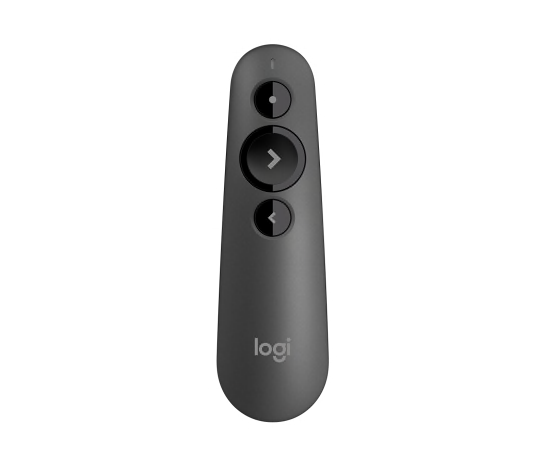
The R500s uses a red laser and a three-button layout. Logitech documents USB-receiver and Bluetooth Low Energy connections and rates the operating distance at up to 20 meters, while qualifying that result by environmental and computing conditions. Treat that distance as a manufacturer maximum rather than a guaranteed room measurement.
The product page also states that the laser is less noticeable on LCD and plasma screens. That limitation makes display type a buying question: the direct beam is most persuasive for suitable projection surfaces, while Spotlight’s digital effect may fit computer displays better.
Pros
- The red laser points directly at a suitable projection surface. It does not require Logitech’s advanced pointer effects to place a visible point in the room.
- Three physical buttons keep slide control simple. The layout suits presenters who need forward, back and laser functions without learning an effects interface.
- Receiver and Bluetooth Low Energy connections provide two host options. This helps when one connection type is unavailable, subject to the venue computer’s policies.
Cons and trade-offs
- The red beam is less noticeable on LCD and plasma displays. Logitech states this limitation directly, so the R500s is a weaker fit for some flat-panel presentation rooms.
- A physical dot is separate from the shared computer image. Remote viewers generally need an on-screen cursor or annotation to see emphasis in a screen share.
- It lacks Spotlight’s digital highlight, magnifier, timer and vibration workflow. Presenters who use those cues give up meaningful software features in exchange for simplicity.
Choose something else if: Your audience mainly watches LCD displays or remote screen shares, or you need digital highlighting and presenter timing cues. Original Spotlight better addresses those requirements when its software is supported.
Our recommendation
We recommend R500s for a projection-room workflow where a physical red laser is visible and three-button control is enough. Verify the room’s laser policy and display surface. Do not buy it on the 20-meter claim without testing the receiver or Bluetooth connection in the real venue.
Source: Logitech R500s US product page.
Price listing: Logitech R500s — Graphite.
How to choose a presentation remote
- Name the display. Record whether the room uses a projector, LCD panel, video wall or shared computer screen.
- Map the audience path. Decide whether only people in the room need to see the pointer or remote participants must see it in a screen share.
- Check the host computer. Confirm an available USB port or Bluetooth permission and, for Spotlight effects, current software support and install rights.
- Rehearse the real presentation. Test slide movement, pointer visibility, presenter view and screen sharing with the intended application.
- Verify the exact model. Original Spotlight, Spotlight 2, R500 and R500s are distinct. Match the name and pictured controls before ordering.
Spotlight vs. R500s FAQ
Is the original Spotlight a laser pointer?
No. The reviewed original Spotlight uses software-generated digital effects. It does not place a physical laser dot on a wall or projection screen.
Can Spotlight change slides without its presentation software?
Logitech’s original-Spotlight support article documents next/back and mouse-cursor control without the presentation application. Highlighting, magnification, timers, vibration alerts and customization use software.
Will the R500s laser work well on a television?
Logitech states that the red laser is less noticeable on LCD and plasma screens. Test the actual display; use an on-screen pointer when a physical beam is difficult to see.
Does a laser pointer appear in a screen share?
A physical laser points at the room surface rather than becoming part of the shared computer image. Remote participants typically need an on-screen cursor, annotation or digital pointer effect.
Is Spotlight 2 the same as the original Spotlight?
No. This comparison covers the original Logitech Spotlight. Check the exact model name and controls rather than transferring specifications from Spotlight 2.
Amazon prices: Cards show the named US configuration and an eligible current new USD offer when available, with its check time. Prices expire within one hour; unavailable offers use a labelled search link. Confirm the model, pack size, included parts and final checkout price. Numerical Amazon ratings are omitted when usable review data is unavailable.
Research method, primary sources and limitations
We compared Logitech’s current US software page, an original-Spotlight support article and the US R500s product page. We evaluated pointing method, control workflow, connection choices and stated display limitations. We did not test range, pointer visibility, software compatibility or battery endurance. Manufacturer features and range remain claims; the recommendations are editorial judgments about presentation workflows.
Buying-advice update: September 13, 2026. Original specification research: September 9, 2026. Spotlight 2 and the older R500 were excluded.
Primary sources: Logitech Options+; Logitech original Spotlight support; Logitech R500s. Read our research methodology and Home Office guides.
CERTAIN CONTENT THAT APPEARS ON THIS SITE COMES FROM AMAZON. THIS CONTENT IS PROVIDED “AS IS” AND IS SUBJECT TO CHANGE OR REMOVAL AT ANY TIME.
Affiliate disclosure
As an Amazon Associate, The Gear Audit earns from qualifying purchases. We may earn an affiliate commission when you buy through our links, at no extra cost to you. Read our full affiliate disclosure.