How to Choose a Mechanical Keyboard (2026): Layout, Switches, and Connection
By The Gear Audit Team · Specification research September 10, 2026; buying-advice layout update September 13, 2026.
Quick answer: decide what cannot be changed later
Choose the layout first because missing dedicated keys become layer commands. Choose the connection next because a cable, Bluetooth, and a 2.4 GHz receiver solve different desk problems. Then choose between a conventional mechanical switch ecosystem and a Hall-effect system. Only after those decisions should you compare switch feel, keycaps, lighting, and case materials.
Keep the physical keys your workflow uses, count the devices, and decide whether Bluetooth or a receiver is required. A 75% Keychron K3 Pro is a useful example of keeping arrows and a function row.
Start with the game or input behavior that would use adjustable actuation. Wooting 80HE illustrates how the switch and software ecosystem can define the purchase.
The four decisions that narrow the field
| Question | What to decide | Practical consequence | What to verify |
|---|---|---|---|
| Which physical keys do I use? | Full-size, tenkeyless/80%, 75%, 65%, or 60% | Smaller layouts free desk space but move or remove dedicated keys. | Open the exact layout diagram; percentage names do not guarantee identical key positions. |
| How will it connect? | USB cable, Bluetooth, 2.4 GHz receiver, or a combination | The choice determines pairing, battery management, port use, and how easily the board moves among devices. | Connection modes, number of Bluetooth pairings, receiver inclusion, and host-port compatibility. |
| Which switch system fits? | Conventional mechanical or Hall effect, then a compatible switch feel | It determines the switch ecosystem and whether features such as adjustable actuation are available. | Socket type, supported switches, hot-swap status, and software/firmware requirements. |
| Which exact version is sold? | ANSI/ISO/JIS, switch, backlight, case, and hot-swap option | One product name can cover versions with materially different compatibility or weight. | Manufacturer configuration, listing title, included parts, region, and return terms. |
1. Set the layout before comparing features
A full-size keyboard keeps a numpad and the broadest set of dedicated keys, but it also occupies the most width. Tenkeyless or 80% generally removes the numpad while retaining a separated navigation area. A 75% board packs the function row and arrows into a tighter body. A 65% or 60% board asks the user to reach more commands through layers.
The best percentage is the smallest arrangement that preserves the workflow you do not want to relearn. Someone who enters numbers throughout the day has a different minimum from a writer who mainly needs letters and arrows. A player who wants more mouse room may accept layers that would interrupt a spreadsheet workflow. Read the actual diagram because two boards using the same percentage label can place navigation and modifier keys differently.
Useful layout checks
- Write down the keys used without looking. Numpad, function row, arrows, Delete, Home, End, Page Up, and Page Down are common dividing points.
- Measure keyboard width against mouse space. The benefit of a smaller board is physical room; it should solve a real desk constraint.
- Inspect the exact legends. ANSI, ISO, and JIS change more than the product name communicates, and regional listings can mix them.
Layout trade-offs
- Missing dedicated keys become layer work. A compact board can add cognitive steps to shortcuts used dozens of times per day.
- A separate numpad adds another device. It restores numeric entry but needs its own desk position and connection.
- Percentage labels are shorthand. They do not prove exact key positions, key count, or legends.
2. Match the connection to the desk
USB-C wired operation removes routine battery management and is a straightforward fit for one fixed computer. Bluetooth can be helpful when a keyboard must switch among compatible computers or tablets; the number of stored pairings matters. A 2.4 GHz receiver is a separate wireless route that may suit a desktop, but it occupies a port and creates a small accessory to keep track of.
Do not infer wireless capability from a USB charging cable, and do not treat “wireless” as one feature. A keyboard may offer Bluetooth only, receiver only, or both. Check whether the receiver is included, whether the computer has the right port, and whether device switching works in the connection mode you plan to use.
Connection choices that solve real problems
- A cable suits one stable workstation. It keeps the board powered and avoids pairing decisions.
- Bluetooth can reduce receiver swapping. It is useful when compatible laptops and tablets share a keyboard and available USB ports are scarce.
- A receiver creates another wireless path. It can remain attached to a desktop while Bluetooth serves a mobile device, when the exact keyboard documents both.
Connection trade-offs
- Wireless modes require a power plan. Lighting, mode, settings, and use affect how often a rechargeable board needs attention.
- Receivers consume a port. A USB-A receiver may also require an adapter on a laptop that offers only USB-C.
- Pairing counts are model-specific. A product family name or marketplace summary is not enough evidence for the exact number of devices.
3. Choose a switch system, then a switch feel
Conventional mechanical switches are commonly described as linear, tactile, or clicky. Those labels help organize the options, but they do not guarantee the same feel or sound across brands. A hot-swap board may allow later changes without soldering, yet the socket and switch format still limit what fits. Low-profile boards are especially important to check because their parts should not be assumed to accept standard-height switches.
Hall-effect keyboards detect travel magnetically and can expose controls that are not standard mechanical features. Wooting documents adjustable actuation, Rapid Trigger, and analog input on the 80HE. Those tools make sense only when the intended game or workflow can use them. They also tie the purchase to a particular switch and software ecosystem, so the buyer should assess that system rather than treating Hall effect as an automatic upgrade.
Switch questions worth answering
- Do you want a bump, click, or smoother travel? Start with the broad feel category, then check the exact named switch.
- Will you actually change switches? Hot swap is valuable when experimentation or repair is part of the plan.
- Will adjustable actuation be configured? Hall-effect controls add value when the user intends to learn and use them.
Switch-system trade-offs
- Hot swap is not universal compatibility. Socket style, pin layout, low-profile format, and firmware support remain boundaries.
- Switch names are not comparative test results. Manufacturer labels do not prove which board will feel or sound better to a particular user.
- Software features create setup work. Adjustable behavior and remapping should be judged with their configuration requirements in mind.
4. Verify the exact configuration at checkout
A model name often covers several layouts, switches, cases, backlights, and socket types. Keychron’s K3 Pro page, for example, distinguishes regular switch selections from an RGB Backlight Hot-Swappable option and limits the latter to Gateron low-profile mechanical switches. Wooting lists ANSI, ISO, and JIS layouts as well as PCR ABS and zinc-alloy case versions for the 80HE.
Build a short checkout checklist: exact model, layout standard, keycap legends, switch, hot-swap status, case, wireless modes, included receiver or cable, and current software support. A retailer search page can mix generations and configurations, so match the listing to the manufacturer description rather than relying on the broad search term.
Worked example: Keychron K3 Pro as a conventional low-profile 75% route
Best for: Someone who wants dedicated arrows and a function row, Bluetooth switching for up to three devices, USB-C, and conventional low-profile mechanical switches.

K3 Pro shows why configuration comes after the framework. Its 75% layout answers the dedicated-key question; Bluetooth and USB-C answer the connection question; its low-profile mechanical platform answers the switch-system question. The remaining decision is the exact version, because Keychron limits hot swap to the RGB Backlight Hot-Swappable option and names compatible Gateron low-profile mechanical switches.
Pros
- The 75% layout keeps dedicated arrows and a function row. It demonstrates a compact route that preserves common work controls instead of moving all of them onto layers.
- Bluetooth supports up to three devices. That makes the example relevant to a mixed computer-and-tablet desk when Bluetooth is the preferred wireless route.
Cons and trade-offs
- No 2.4 GHz receiver mode is documented. Someone who needs a receiver should shortlist a keyboard that explicitly includes that connection rather than treating Bluetooth as interchangeable.
- Hot swap depends on the exact version. Keychron limits it to the RGB Backlight Hot-Swappable selection and compatible Gateron low-profile mechanical switches.
Our recommendation
Use K3 Pro as a shortlist example when a compact work layout and conventional low-profile switches fit the goal. Do not choose it for Hall-effect controls or assume every configuration is hot-swappable.
Search Amazon US for Keychron K3 Pro listings
Worked example: Wooting 80HE as a Hall-effect 80% route
Best for: Someone whose intended games or workflows can use adjustable actuation, Rapid Trigger, or analog input and who wants an 80% layout rather than a numpad.
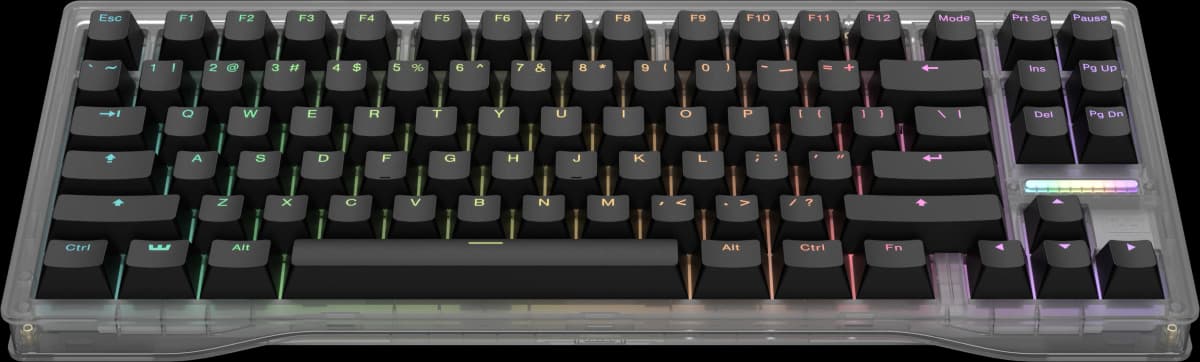
Wooting documents the 80HE as an 80% Hall-effect keyboard with adjustable actuation from 0.1 to 4 mm, Rapid Trigger, analog input, and true 8 kHz polling. It lists Lekker L60 V2 switches and ANSI, ISO, and JIS options, with PCR ABS and zinc-alloy case choices. These facts illustrate why the switch system and exact variant should be decided before color or lighting.
Pros
- Adjustable actuation and Rapid Trigger are documented controls. They give a buyer concrete Hall-effect behavior to match to a game or workflow rather than choosing the board from the switch label alone.
- Multiple layout and case options are listed. ANSI, ISO, and JIS plus PCR ABS and zinc-alloy cases let the buyer identify a specific configuration for region and weight preferences.
Cons and trade-offs
- The 80HE is a wired keyboard. It does not fit a desk that requires Bluetooth or receiver-based wireless switching among devices.
- The 80% layout omits a numpad. Buyers with frequent numeric-entry work must accept the missing block or add a separate keypad.
Our recommendation
Use Wooting 80HE as a shortlist example when its configurable Hall-effect behavior is the reason for buying. A conventional mechanical board remains the simpler route when those controls would go unused.
Search Amazon US for Wooting 80HE listings
For a direct source-linked comparison of a conventional wireless mechanical board and Wooting 80HE, see our mechanical keyboard shortlist.
Mechanical keyboard buying FAQ
Which keyboard size is best for general work?
The answer depends on the dedicated keys used daily. Full-size keeps a numpad; 75% often preserves arrows and a function row in less width; smaller layouts require more layer use. Choose from the workflow rather than the percentage label alone.
Do I need a hot-swappable keyboard?
Only if compatible switch changes or easier switch replacement are part of the plan. Hot swap does not make every switch fit, and variant-specific limitations still apply.
Is Hall effect better than a conventional mechanical switch?
Manufacturer specifications do not establish a universal winner. Hall effect can add adjustable actuation and related controls; conventional mechanical boards may offer a simpler or broader familiar switch route. Choose the ecosystem whose features you will use.
Should I choose Bluetooth or a receiver?
Bluetooth helps when several compatible devices share the board and ports are limited. A receiver provides a separate wireless path but occupies a port and must be carried. Some keyboards offer both; verify the exact model.
How should I check the buying links?
Read the button or card label: a search can mix layouts and configurations, while an exact-offer card applies only to its named variant and current availability. Confirm the exact model, layout, case, switch, hot-swap status, condition, seller, included accessories, and final checkout price.
Research method, primary sources and limitations
This is a selection guide based on manufacturer documentation and uses Keychron K3 Pro and Wooting 80HE as worked examples. The framework interprets documented layout, connection, switch-system, and configuration differences; it is not a ranking of every mechanical keyboard.
We did not test switch feel, sound, latency, wireless reliability, software, battery life, or durability. The Wooting performance and actuation entries are manufacturer specifications rather than independent measurements.
Correction: The previous version presented original testing claims without retained supporting records. Those claims have been removed.
Buying-advice layout update: September 13, 2026. Original specification research: September 10, 2026.
Primary sources: Keychron K3 Pro; Wooting 80HE. Read our research methodology and Computer Peripherals guides.
CERTAIN CONTENT THAT APPEARS ON THIS SITE COMES FROM AMAZON. THIS CONTENT IS PROVIDED “AS IS” AND IS SUBJECT TO CHANGE OR REMOVAL AT ANY TIME.
Affiliate disclosure
As an Amazon Associate, The Gear Audit earns from qualifying purchases. We may earn an affiliate commission when you buy through our links, at no extra cost to you. Read our full affiliate disclosure.