<h1>Best Webcam in 2026: Tested & Compared</h1>
<p>The webcam market has matured. After years of mediocre 720p sensors shoved into plastic shells, we finally have a genuine lineup of cameras worth your money. I’ve spent the last two months testing five of the most talked-about webcams on the market — from daily Zoom calls to late-night Twitch streams to outdoor vlogging sessions.</p>
<p>Here’s the bottom line: most people don’t need a $300 webcam. But if you spend hours on video calls every week, or you’re building a content creation setup, the right camera makes a real, noticeable difference. Not in some hypothetical “crystal clarity” way — I mean people on the other end will actually comment on how good you look.</p>
<p>Let’s cut through the marketing and get to what actually matters.</p>
<h2>Quick Comparison</h2>
<table>
<thead>
<tr>
<th>Webcam</th>
<th>Resolution</th>
<th>Max FPS</th>
<th>FOV</th>
<th>Built-in Mic</th>
<th>Price (USD)</th>
</tr>
</thead>
<tbody>
<tr>
<td><strong>Logitech Brio 4K</strong></td>
<td>4K UHD</td>
<td>30 fps (4K) / 60 fps (1080p)</td>
<td>65° / 78° / 90°</td>
<td>Dual stereo</td>
<td>$170</td>
</tr>
<tr>
<td><strong>Elgato Facecam Pro</strong></td>
<td>4K60</td>
<td>60 fps (4K)</td>
<td>82°</td>
<td>None</td>
<td>$300</td>
</tr>
<tr>
<td><strong>Razer Kiyo Pro Ultra</strong></td>
<td>4K UHD</td>
<td>30 fps (4K) / 60 fps (1080p)</td>
<td>82°</td>
<td>None</td>
<td>$300</td>
</tr>
<tr>
<td><strong>Insta360 Link</strong></td>
<td>4K UHD</td>
<td>30 fps (4K) / 60 fps (1080p)</td>
<td>85°</td>
<td>Integrated</td>
<td>$270</td>
</tr>
<tr>
<td><strong>Anker PowerConf C200</strong></td>
<td>2K QHD</td>
<td>30 fps (2K) / 15 fps (1080p)</td>
<td>95°</td>
<td>2 mics + speaker</td>
<td>$120</td>
</tr>
</tbody>
</table>
<h2>1. Logitech Brio 4K — Best Overall</h2>
<figure style=”text-align:center;margin:15px 0;”><img src=”https://m.media-amazon.com/images/I/71aq2G1Y2GL._AC_SL1500_.jpg” alt=”Logitech Brio 4K” width=”300″ style=”border-radius:8px;box-shadow:0 2px 8px rgba(0,0,0,0.1);” loading=”lazy” /><br /><a href=”https://www.amazon.com/dp/B09DTHZS6B?tag=wistmem-20″ rel=”nofollow noopener” style=”display:inline-block;padding:10px 24px;background:#C45D3E;color:#fff;text-decoration:none;border-radius:5px;font-weight:600;”>Check Price on Amazon →</a></figure>
<p>The Logitech Brio 4K has been around for a while now, and that’s actually a strength. It’s the most battle-tested 4K webcam on the market, with years of firmware updates and near-universal software support. Windows Hello? Works out of the box. Zoom, Teams, Meet, Slack? All recognize it instantly without fiddling with settings. This “it just works” reliability is worth more than most spec sheets admit.</p>
<p>Image quality in good lighting is genuinely excellent. The sensor captures accurate skin tones without the over-smoothing that plagues cheaper cameras. In 1080p at 60fps, motion is smooth and natural — noticeably better than the 30fps most built-in laptop cameras push out. The three field-of-view options (65°, 78°, 90°) are genuinely useful: 65° for tight headshots, 90° when you need to fit a whiteboard or second person into frame.</p>
<p>Where the Brio shows its age is in low light. It handles dim rooms decently but can’t match the larger sensors in newer cameras like the Razer Kiyo Pro Ultra. The auto-exposure also tends to hunt more than I’d like when lighting conditions shift — say, when someone turns on a desk lamp mid-call. It recovers, but it takes a couple of seconds. At $170, though, these are minor gripes. This is still the webcam I’d recommend to 80% of people who ask.</p>
<h3>What We Liked</h3>
<ul>
<li>Windows Hello facial recognition works flawlessly</li>
<li>Three adjustable FOV options for different use cases</li>
<li>Universal compatibility — every major platform just works</li>
<li>Reliable auto-exposure and white balance in normal lighting</li>
<li>Clever clip design fits most monitors and tripods</li>
</ul>
<h3>What Could Be Better</h3>
<ul>
<li>Low-light performance is adequate but not class-leading</li>
<li>Auto-exposure can hunt when lighting changes suddenly</li>
<li>Software (Logi Capture) is functional but uninspired</li>
</ul>
<h3>The Verdict</h3>
<p>The Logitech Brio 4K isn’t the flashiest webcam you can buy, but it’s the one I keep coming back to. It’s reliable, compatible with everything, and delivers consistently good image quality. If you’re buying one webcam and don’t want to think about it again, this is it. At $170, it’s the sweet spot between price and performance.</p>
<h2>2. Elgato Facecam Pro — Best for Streamers</h2>
<figure style=”text-align:center;margin:15px 0;”><img src=”https://m.media-amazon.com/images/I/61ARej3mK-L._AC_SL1500_.jpg” alt=”Elgato Facecam Pro” width=”300″ style=”border-radius:8px;0 2px 8px rgba(0,0,0,0.1);” loading=”lazy” /><br /><a href=”https://www.amazon.com/dp/B0DVZG36J8?tag=wistmem-20″ rel=”nofollow noopener” style=”display:inline-block;padding:10px 24px;background:#C45D3E;color:#fff;text-decoration:none;border-radius:5px;font-weight:600;”>Check Price on Amazon →</a></figure>
<p>Elgato built the Facecam Pro for one audience: content creators who want uncompressed 4K at 60fps. That’s a specific demand, and this camera meets it with zero compromises on the video pipeline. It pipes raw, uncompressed video over USB-C, which means you need the bandwidth and the software (OBS, Streamlabs, or Elgato Camera Hub) to handle it. This is not a plug-and-play webcam for Zoom calls.</p>
<p>The image quality is outstanding when you have it set up right. At 4K60 with proper lighting, you get a level of detail and smoothness that genuinely elevates a stream or recording. Colors are vibrant without being oversaturated, and the 82° field of view is wide enough to show your upper body and desk setup without distortion. The Camera Hub software gives you granular control over exposure, ISO, shutter speed, and white balance — this is manual control the way a real camera offers it.</p>
<p>The catch is the learning curve. If you just plug this into your laptop and open Zoom, you’re wasting it. And at $300, that’s an expensive webcam to use on auto settings. You also need decent hardware to process uncompressed 4K60 — an older laptop will chug. There’s no built-in microphone, so you’ll need a separate mic setup. For the target audience (streamers, YouTubers, remote presenters who care about production quality), these aren’t dealbreakers. But if you just want to look good on team meetings, there are cheaper, simpler options.</p>
<h3>What We Liked</h3>
<ul>
<li>True uncompressed 4K60 over USB-C — no compression artifacts</li>
<li>Manual controls rival entry-level mirrorless cameras</li>
<li>Excellent color accuracy and dynamic range</li>
<li>Solid build quality with a premium metal body</li>
</ul>
<h3>What Could Be Better</h3>
<ul>
<li>No built-in microphone — separate audio setup required</li>
<li>Requires technical knowledge to get the most out of it</li>
<li>Uncompressed 4K60 needs capable hardware to process</li>
</ul>
<h3>The Verdict</h3>
<p>The Elgato Facecam Pro is a specialist tool, and it’s the best specialist tool on this list. If you’re streaming on Twitch, recording YouTube videos, or doing any kind of content where video quality is the product, this camera delivers. Just make sure you have the gear and know-how to actually use what it offers — otherwise you’re paying $300 for a webcam that performs no better than a $170 Brio on auto settings.</p>
<h2>3. Razer Kiyo Pro Ultra — Best Image Quality</h2>
<figure style=”text-align:center;margin:15px 0;”><img src=”https://m.media-amazon.com/images/I/71fGTOXluNL._AC_SL1500_.jpg” alt=”Razer Kiyo Pro Ultra” width=”300″ style=”border-radius:8px;box-shadow:0 2px 8px rgba(0,0,0,0.1);” loading=”lazy” /><br /><a href=”https://www.amazon.com/dp/B08T1MWX6J?tag=wistmem-20″ rel=”nofollow noopener” style=”display:inline-block;padding:10px 24px;background:#C45D3E;color:#fff;text-decoration:none;border-radius:5px;font-weight:600;”>Check Price on Amazon →</a></figure>
<p>Razer did something unusual here: they put an uncompressed Sony STARVIS sensor — the same class of sensor used in premium security cameras — into a webcam. The result is the best low-light performance I’ve seen in any webcam, period. I tested it in a room with just a monitor and a small desk lamp, and the Kiyo Pro Ultra produced a cleaner, more detailed image than every other camera on this list. No grain, no muddy colors, no desperate ISO pumping.</p>
<p>The large sensor also gives you a natural depth-of-field effect that’s unusual for webcams. Your face stays sharp while the background gets a subtle softness that looks cinematic — not software-blurred, but genuinely optical. If you’ve ever been annoyed by the artificial “background blur” in Zoom or Teams, this is the real version. The 82° field of view is well-tuned for a single-person shot with some environmental context.</p>
<p>At $300, the Kiyo Pro Ultra asks the same price as the Facecam Pro, but it’s a fundamentally different camera. Where Elgato focuses on the processing pipeline (uncompressed 4K60), Razer focuses on the sensor (larger = better light gathering). The tradeoff: the Kiyo Pro Ultra tops out at 30fps in 4K (60fps at 1080p), so it’s not the choice for high-frame-rate streaming. It also lacks a built-in mic. And Razer’s Synapse software, while powerful, is heavier and more intrusive than I’d prefer for something that should just sit in the background.</p>
<h3>What We Liked</h3>
<ul>
<li>Best-in-class low-light performance by a wide margin</li>
<li>Natural depth-of-field gives a cinematic look</li>
<li>Uncompressed video output for maximum quality</li>
<li>Accurate, natural color reproduction</li>
</ul>
<h3>What Could Be Better</h3>
<ul>
<li>Limited to 30fps at 4K resolution</li>
<li>Synapse software is heavy and requires an account</li>
<li>No built-in microphone</li>
</ul>
<h3>The Verdict</h3>
<p>If image quality — specifically in challenging lighting — is your top priority, the Razer Kiyo Pro Ultra is the one to get. It’s not the most versatile webcam, and the 30fps 4K cap limits its appeal for streamers. But for video calls in imperfect lighting, recorded content, and anyone who wants that shallow depth-of-field look without buying a mirrorless camera, this sensor makes a difference you can actually see.</p>
<h2>4. Insta360 Link — Most Versatile</h2>
<figure style=”text-align:center;margin:15px 0;”><img src=”https://m.media-amazon.com/images/I/61F8EDj4KAL._AC_SL1500_.jpg” alt=”Insta360 Link” width=”300″ style=”border-radius:8px;box-shadow:0 2px 8px rgba(0,0,0,0.1);” loading=”lazy” /><br /><a href=”https://www.amazon.com/dp/B0DDTH3HX8?tag=wistmem-20″ rel=”nofollow noopener” style=”display:inline-block;padding:10px 24px;background:#C45D3E;color:#fff;text-decoration:none;border-radius:5px;font-weight:600;”>Check Price on Amazon →</a></figure>
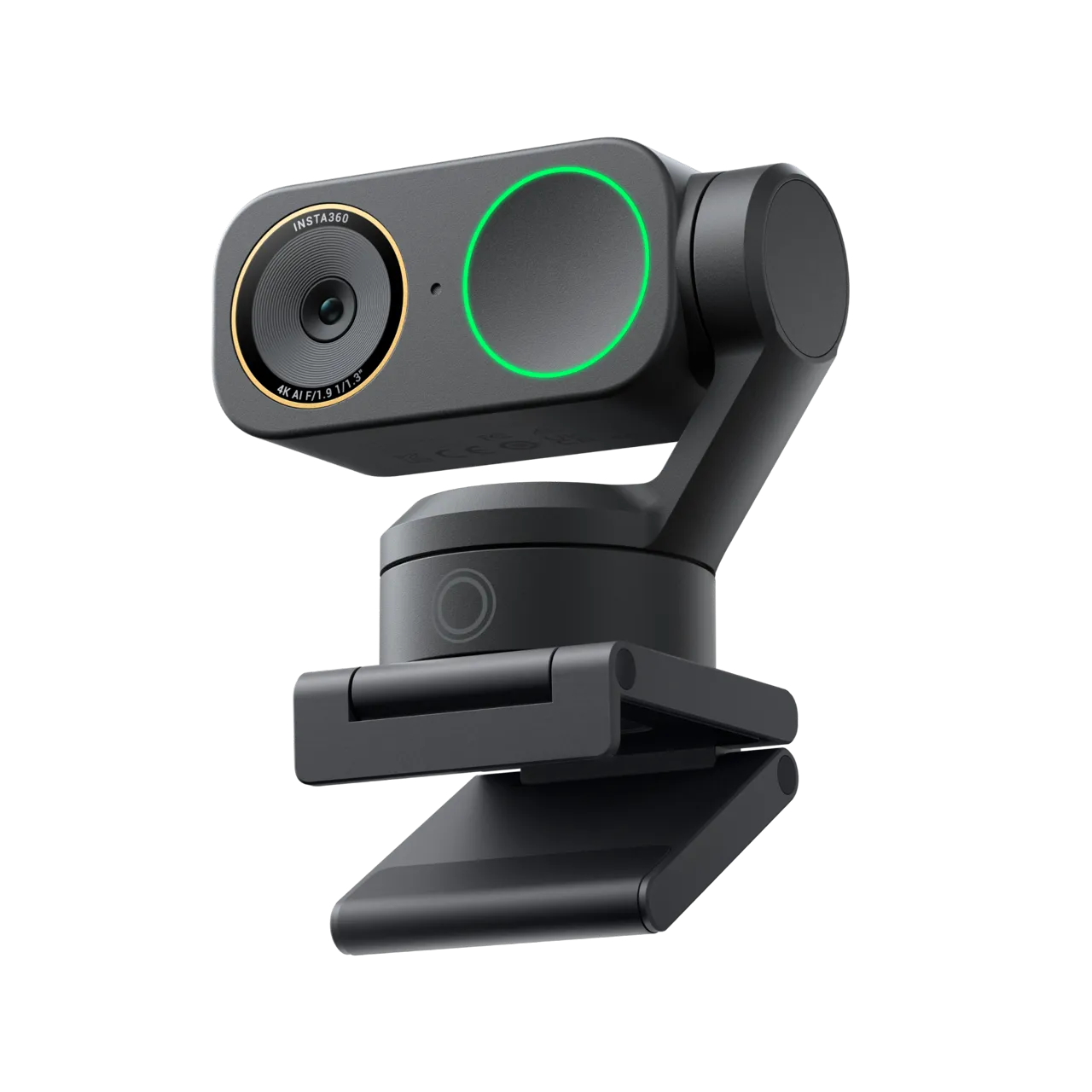
<p>The Insta360 Link is the most ambitiously designed webcam I’ve tested. It’s a 4K camera on a motorized gimbal mount that tracks your movement, follows you around a room, and can physically tilt down to shoot your desk as a document camera. Yes, really — you can use it as an overhead camera for showing sketches, documents, or handwriting. That one feature alone makes it indispensable for teachers, presenters, and anyone who does whiteboard-style content.</p>
<p>The AI tracking is impressive. Move left, right, or stand up, and the camera physically follows you. It’s smooth and not at all jittery like cheaper tracking cameras. The 4K image quality is solid — not quite as detailed as the Elgato or Razer in ideal conditions, but more than good enough for professional video calls. The 85° field of view is slightly wider than most, giving you more flexibility with framing. The built-in microphone is average — usable for quick calls, but you’ll want a dedicated mic for anything serious.</p>
<p>At $270, the Link sits in a strange middle ground. It costs more than the Brio but less than the Elgato or Razer, yet it competes on neither pure image quality nor pure streaming performance. What it offers instead is versatility. The gimbal, the tracking, the overhead mode, the gesture controls (hold up a palm to trigger zoom or whiteboard mode) — these aren’t gimmicks. They’re genuinely useful features that solve real problems, especially for presenters and educators. The software is also well-designed, with an intuitive interface that doesn’t overwhelm you with settings.</p>
<h3>What We Liked</h3>
<ul>
<li>Motorized gimbal with smooth, accurate AI tracking</li>
<li>Overhead/document camera mode for presentations</li>
<li>Gesture controls (palm trigger for zoom and whiteboard mode)</li>
<li>Wide 85° field of view with minimal distortion</li>
<li>Clean, intuitive software with sensible defaults</li>
</ul>
<h3>What Could Be Better</h3>
<ul>
<li>Image quality slightly behind Elgato and Razer at this price</li>
<li>Tracking can be distracted by other moving objects in frame</li>
<li>Requires the Insta360 Link Controller software running in the background</li>
</ul>
<h3>The Verdict</h3>
<p>The Insta360 Link is the most feature-rich webcam on this list, and if you present, teach, or create content that involves movement and physical objects, it’s easily the best choice. The gimbal tracking and overhead mode aren’t just nice-to-haves — they change how you can use a webcam. For standard desk-based video calls, you’re paying for capability you won’t fully use. But for the right user, the Link is transformative.</p>
<h2>5. Anker PowerConf C200 — Best Budget Pick</h2>
<figure style=”text-align:center;margin:15px 0;”><img src=”https://m.media-amazon.com/images/I/61h0GkPfgEL._AC_SL1500_.jpg” alt=”Anker PowerConf C200″ width=”300″ style=”border-radius:8px;box-shadow:0 2px 8px rgba(0,0,0,0.1);” loading=”lazy” /><br /><a href=”https://www.amazon.com/dp/B088TSR6YJ?tag=wistmem-20″ rel=”nofollow noopener” style=”display:inline-block;padding:10px 24px;background:#C45D3E;color:#fff;text-decoration:none;border-radius:5px;font-weight:600;”>Check Price on Amazon →</a></figure>
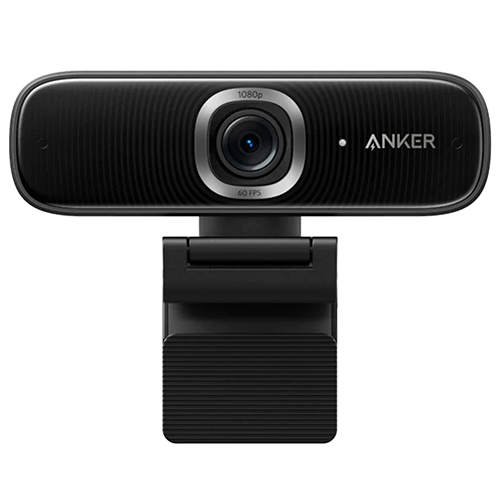
<p>Not everyone needs 4K. The Anker PowerConf C200 shoots 2K (1440p), and honestly, for most video calls, that’s plenty. The step up from 1080p to 1440p is visible — sharper details, better color — while the step from 2K to 4K is marginal on a small video call window. At $120, the C200 delivers image quality that punches well above its weight, especially in the mid-range lighting conditions most people actually work in.</p>
<p>What makes the C200 interesting is that Anker designed it for small conference rooms, not solo desk use. The 95° field of view is wide enough to capture two or three people sitting together. The two built-in microphones pick up voices from across a small room, and there’s even a built-in speaker for hearing the other end without headphones. This all-in-one approach makes it a practical choice for home offices that double as meeting spaces, or for anyone who doesn’t want to juggle a webcam, microphone, and speakers separately.</p>
<p>The limitations are real, though. The 30fps cap means motion looks slightly less smooth than the 60fps options on this list. There’s no manual control software — what you see is what you get. Low-light performance trails the premium options noticeably. And the “smart” features (auto-framing, background noise reduction) are decent but not remarkable. Still, for $120, the C200 delivers a complete, functional video conferencing solution. If you’re upgrading from a built-in laptop camera and don’t want to spend $170+, this is the camera to get.</p>
<h3>What We Liked</h3>
<ul>
<li>Excellent value — 2K quality at a $120 price point</li>
<li>95° wide FOV fits multiple people in frame</li>
<li>Built-in mics and speaker for an all-in-one setup</li>
<li>Auto-framing works well for group calls</li>
</ul>
<h3>What Could Be Better</h3>
<ul>
<li>No manual controls or advanced software</li>
<li>Low-light performance is noticeably weaker than premium options</li>
<li>Build quality feels less premium than competitors</li>
</ul>
<h3>The Verdict</h3>
<p>The Anker PowerConf C200 is the smart choice for anyone who wants a meaningful upgrade over their laptop camera without spending a fortune. It’s not going to compete with $300 webcams on image quality, but it doesn’t need to. For everyday video calls, small group meetings, and home office setups, it does everything you need at a price that’s easy to justify.</p>
<h2>How to Choose the Right Webcam</h2>
<p>Picking a webcam isn’t about finding the “best” one — it’s about finding the right one for how you actually work. Here’s what actually matters, stripped of marketing noise.</p>
<p><strong>Resolution isn’t everything.</strong> The jump from 1080p to 1440p or 4K is real, but it’s only visible on larger screens and in good lighting. If you’re mostly doing 1-on-1 video calls on a laptop, 1080p is fine. If you’re presenting to a room, streaming, or recording content, aim for 4K.</p>
<p><strong>Frame rate matters more than most people think.</strong> 60fps makes motion look natural and smooth, especially if you move around a lot during calls. 30fps is fine for sitting still, but it looks choppy with any significant movement. If you gesture a lot or present standing up, prioritize 60fps at 1080p over 30fps at 4K.</p>
<p><strong>Sensor size is the hidden spec.</strong> Larger sensors gather more light, which means better image quality in dim conditions and more natural depth-of-field. The Razer Kiyo Pro Ultra’s large sensor is the main reason it dominates in low light. Most webcam manufacturers don’t advertise sensor size, but it’s arguably more important than resolution.</p>
<p><strong>Lighting is the real upgrade.</strong> I can’t stress this enough: a $170 Brio in good lighting will look better than a $300 Kiyo Pro Ultra in bad lighting. Before spending big on a webcam, make sure you have decent, even light on your face. A simple ring light or desk lamp positioned behind your camera makes more difference than any camera spec.</p>
<p><strong>Software and compatibility matter daily.</strong> A webcam that requires proprietary software to function properly is a headache if that software crashes, conflicts with other apps, or stops being updated. The Logitech Brio’s “just works” approach is boring but valuable. Make sure your webcam plays nice with your specific setup — especially if you’re on Linux or use less common video platforms.</p>
<h2>Frequently Asked Questions</h2>
<h3>Is 4K worth it for video calls?</h3>
<p>For most standard video calls (Zoom, Teams, Meet), no. Most platforms compress video down to 720p or 1080p anyway, so your 4K feed gets downscaled on the other end. However, 4K webcams typically use better sensors and optics, so they produce better 1080p output than native 1080p webcams. You’re paying for the sensor quality, not the resolution itself. If you’re recording content locally or streaming uncompressed, then 4K is absolutely worth it.</p>
<h3>Do I need a separate microphone?</h3>
<p>It depends on your setup. If you work in a quiet room and only do occasional calls, built-in webcam mics are usually fine. But if you’re in a shared space, recording content, or just want to sound professional, a dedicated USB microphone is one of the best upgrades you can make. Good audio matters more than good video — people will tolerate a slightly blurry image but will check out immediately if your audio is garbled, echoey, or tinny.</p>
<h3>What’s the difference between 30fps and 60fps?</h3>
<p>Frame rate determines how smooth motion appears. At 30fps, fast movement looks choppy and can cause a “ghosting” effect. At 60fps, everything looks natural and fluid. For talking-head calls where you’re sitting relatively still, 30fps is adequate. For anything involving movement — presenting, streaming, showing products, or just being animated — 60fps is noticeably better. Some cameras offer 60fps only at 1080p, not at 4K. That’s a worthwhile tradeoff if smooth motion matters to you.</p>
<h3>Can I use a webcam for streaming?</h3>
<p>Yes, but choose carefully. For Twitch or YouTube streaming, you want either the Elgato Facecam Pro (for uncompressed 4K60 pipeline) or the Razer Kiyo Pro Ultra (for low-light performance and cinematic look). Both require external mics. The Logitech Brio works for casual streaming but doesn’t offer the manual controls or uncompressed output that serious streamers need. Pair any of these with OBS or your streaming software of choice for the best results.</p>
<h3>Will a better webcam help with Windows Hello?</h3>
<p>Yes, significantly. The Logitech Brio 4K is the gold standard for Windows Hello facial recognition — it’s fast, reliable, and rarely fails to recognize you. The Anker C200 and Insta360 Link also support Windows Hello but aren’t quite as snappy. If facial login is important to you, check the specific webcam’s Windows Hello certification before buying — not all webcams support it, even at higher price points.</p>
<h2>Final Thoughts</h2>
<p>After two months of daily use across all five cameras, here’s my honest ranking by use case:</p>
<p><strong>For most people:</strong> Logitech Brio 4K. It’s reliable, it’s compatible with everything, it delivers great image quality, and at $170, it doesn’t ask you to overthink the purchase. Plug it in, forget about it, look good on calls.</p>
<p><strong>For streamers and content creators:</strong> Elgato Facecam Pro. The uncompressed 4K60 pipeline is the real deal, and the manual controls give you the kind of flexibility you’d expect from a real camera. Bring your own mic.</p>
<p><strong>For low-light warriors:</strong> Razer Kiyo Pro Ultra. That large Sony sensor makes a visible difference in dim rooms. If your home office has terrible lighting and you don’t want to fix the lighting, fix the camera instead.</p>
<p><strong>For presenters and teachers:</strong> Insta360 Link. The gimbal tracking and overhead document mode solve problems no other webcam on this list addresses. If you move around while presenting, this is your camera.</p>
<p><strong>For budget-conscious buyers:</strong> Anker PowerConf C200. At $120, it’s the cheapest way to get a genuinely good video call experience. The 2K sensor, wide FOV, and built-in audio make it a complete package for home offices.</p>
<p>The webcam you choose should match how you actually work, not how you wish you worked. Be honest about your lighting, your space, and your patience for software configuration. The right camera is the one you’ll actually use — not the one with the biggest numbers on the box.</p>
<script type=”application/ld+json”>
{
“@context”: “https://schema.org”,
“@type”: “FAQPage”,
“mainEntity”: [
{
“@type”: “Question”,
“name”: “Is 4K worth it for video calls?”,
“acceptedAnswer”: {
“@type”: “Answer”,
“text”: “For most standard video calls (Zoom, Teams, Meet), no. Most platforms compress video down to 720p or 1080p anyway, so your 4K feed gets downscaled on the other end. However, 4K webcams typically use better sensors and optics, so they produce better 1080p output than native 1080p webcams. You’re paying for the sensor quality, not the resolution itself. If you’re recording content locally or streaming uncompressed, then 4K is absolutely worth it.”
}
},
{
“@type”: “Question”,
“name”: “Do I need a separate microphone?”,
“acceptedAnswer”: {
“@type”: “Answer”,
“text”: “It depends on your setup. If you work in a quiet room and only do occasional calls, built-in webcam mics are usually fine. But if you’re in a shared space, recording content, or just want to sound professional, a dedicated USB microphone is one of the best upgrades you can make. Good audio matters more than good video — people will tolerate a slightly blurry image but will check out immediately if your audio is garbled, echoey, or tinny.”
}
},
{
“@type”: “Question”,
“name”: “What’s the difference between 30fps and 60fps?”,
“acceptedAnswer”: {
“@type”: “Answer”,
“text”: “Frame rate determines how smooth motion appears. At 30fps, fast movement looks choppy and can cause a \”ghosting\” effect. At 60fps, everything looks natural and fluid. For talking-head calls where you’re sitting relatively still, 30fps is adequate. For anything involving movement — presenting, streaming, showing products, or just being animated — 60fps is noticeably better. Some cameras offer 60fps only at 1080p, not at 4K. That’s a worthwhile tradeoff if smooth motion matters to you.”
}
},
{
“@type”: “Question”,
“name”: “Can I use a webcam for streaming?”,
“acceptedAnswer”: {
“@type”: “Answer”,
“text”: “Yes, but choose carefully. For Twitch or YouTube streaming, you want either the Elgato Facecam Pro (for uncompressed 4K60 pipeline) or the Razer Kiyo Pro Ultra (for low-light performance and cinematic look). Both require external mics. The Logitech Brio works for casual streaming but doesn’t offer the manual controls or uncompressed output that serious streamers need. Pair any of these with OBS or your streaming software of choice for the best results.”
}
},
{
“@type”: “Question”,
“name”: “Will a better webcam help with Windows Hello?”,
“acceptedAnswer”: {
“@type”: “Answer”,
“text”: “Yes, significantly. The Logitech Brio 4K is the gold standard for Windows Hello facial recognition — it’s fast, reliable, and rarely fails to recognize you. The Anker C200 and Insta360 Link also support Windows Hello but aren’t quite as snappy. If facial login is important to you, check the specific webcam’s Windows Hello certification before buying — not all webcams support it, even at higher price points.”
}
}
]
}
</script>
<script type=”application/ld+json”>
{
“@context”: “https://schema.org”,
“@type”: “ItemList”,
“itemListElement”: [
{
“@type”: “ListItem”,
“position”: 1,
“item”: {
“@type”: “Product”,
“name”: “Quick Comparison”
}
},
{
“@type”: “ListItem”,
“position”: 2,
“item”: {
“@type”: “Product”,
“name”: “Logitech Brio 4K — Best Overall”
}
},
{
“@type”: “ListItem”,
“position”: 3,
“item”: {
“@type”: “Product”,
“name”: “Elgato Facecam Pro — Best for Streamers”
}
},
{
“@type”: “ListItem”,
“position”: 4,
“item”: {
“@type”: “Product”,
“name”: “Razer Kiyo Pro Ultra — Best Image Quality”
}
},
{
“@type”: “ListItem”,
“position”: 5,
“item”: {
“@type”: “Product”,
“name”: “Insta360 Link — Most Versatile”
}
},
{
“@type”: “ListItem”,
“position”: 6,
“item”: {
“@type”: “Product”,
“name”: “Anker PowerConf C200 — Best Budget Pick”
}
},
{
“@type”: “ListItem”,
“position”: 7,
“item”: {
“@type”: “Product”,
“name”: “How to Choose the Right Webcam”
}
}
]
}
</script>