USB-C Charging Cable vs Data Cable: Which Do You Need?
By The Gear Audit Team · Manufacturer specification research checked October 8, 2026.
Quick answer: choose power, speed and video separately
For charging, match the cable’s power rating to your device and charger. For an external SSD or regular large-file transfers, also choose an explicit data speed that matches the connection. For a monitor or dock, verify the required video or Thunderbolt capability. “Charging cable” does not necessarily mean no data: Apple’s 240W USB-C Charge Cable transfers USB 2 data, but it cannot carry video. A high wattage number never establishes a fast data connection.
One connector, three buying questions
USB-C describes the connection shape. It does not settle how much power the cable carries, how quickly files move or whether a display works. Treat those as three separate lines on your shopping checklist:
- Power, in watts (W): the cable’s charging capability. The device and power source must also support the charging mode.
- Data, in Mbps or Gbps: the stated link capability. Both connected devices and any intervening hub must support the intended standard.
- Video and protocol: an explicit display capability or the Thunderbolt/USB standard required by the monitor or dock.
USB-IF’s current certification guidance requires USB-C-to-USB-C cables in its program to carry a 60W or 240W power marking. Cables faster than USB 2 must also show their supported data rate. USB 2 cables can have a power marking without a speed marking. These are certification-program rules; they do not make every cable in a shop certified, and an older 100W product label is not by itself proof of incompatibility.
A useful listing therefore says something like “10Gbps, 100W, 1m,” rather than relying on “fast charging.” For a display, read the video specification too. Intel explains that a USB 3.2 cable used in a Thunderbolt 4 port negotiates capabilities at the USB 3.2 level. A better port cannot turn an ordinary USB cable into a Thunderbolt link.
Charging cable or data cable: the decision table
The two categories overlap. A cable with fast data can also charge, and a charging-oriented cable may still sync at a lower speed. Buy for the most demanding task that cable will actually perform.
| Your job | What to require | What to avoid assuming |
|---|---|---|
| Charge a phone or tablet beside the bed | Suitable connector, charging protocol and sufficient power rating; a comfortable length. | A faster data rating will make charging faster. |
| Charge a USB-C laptop above 60W | A cable documented for the required power, plus a suitable charger and laptop input. | A 60W cable preserves a 65W, 100W or higher charging budget. |
| Occasional small-file sync | A stated data capability; USB 2 can be sufficient when transfer time is not a priority. | Every cable marketed for charging supports data. |
| Use a 10Gbps USB external SSD | A 10Gbps-capable USB cable and a suitable host port. | 240W means fast storage, or 10Gbps equals actual file-copy speed. |
| Use a 20Gbps USB SSD | The SSD maker’s required USB mode, matching cable and explicit host support. | A Thunderbolt number alone guarantees the SSD’s particular USB mode. |
| Connect a USB-C monitor or Thunderbolt dock | Documented video/protocol support, adequate power rating and the maker’s cable requirements. | A charging label or connector fit establishes display support. |
Three everyday scenarios
1. A dedicated charging spot
Our choice: sufficient power and useful reach. If this cable stays between a wall charger and a phone, higher data bandwidth has little practical value. A 2m cable can reach an outlet away from the bedside table, but a shorter cable makes less clutter when the charger sits nearby. Choose length around the furniture, then check the power and device requirements.
2. A laptop and external SSD
Our choice: match the SSD’s USB mode. Use the supplied cable first when it fits. If replacing it, match the drive’s documented interface and the host port. Our Samsung T7 Shield versus T9 comparison illustrates why a 10Gbps and a 20Gbps USB drive need different checks. A charging cable can become the bottleneck even when its power rating is generous.
3. One cable between the laptop and desk dock
Our choice: the dock’s required protocol and power. Start with its included host cable. A replacement must preserve the upstream connection used for displays, storage and charging. A longer verified cable can help place the dock behind a monitor, but buy that reach only when needed. For the whole connection path, see our USB-C hub host, display and power guide.
Three exact examples: power and data do not rise together
These manufacturer-documented examples represent different jobs. They are selection examples, not a tested ranking or a claim that these are the only suitable cables.
| Exact product | Length / power ceiling | Data capability | Display information | Our use-case choice |
|---|---|---|---|---|
| Apple 240W Charge Cable, MYQT3AM/A | 2m / 240W | USB 2, up to 480Mbps | No video | Charging and occasional sync |
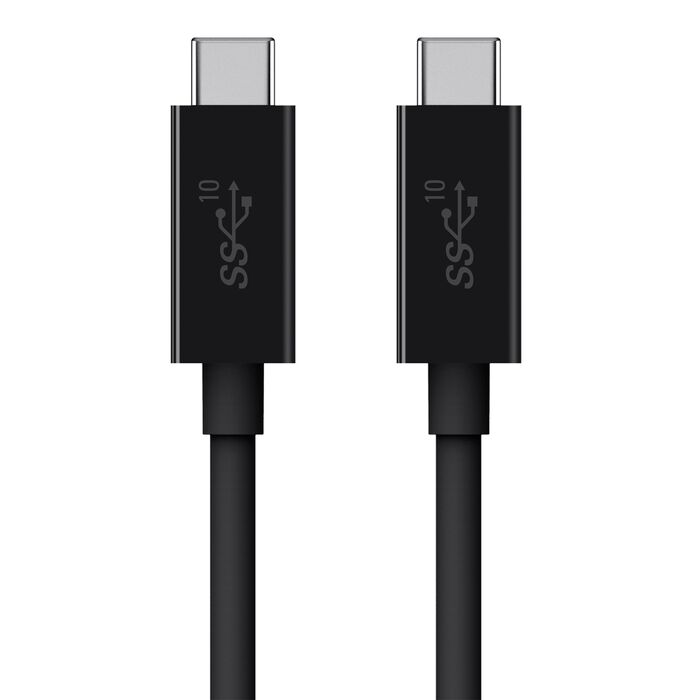
| Belkin F2CU052bt1M-BLK | 1m / 100W | USB, up to 10Gbps | Maker describes 4K video; no refresh-rate guarantee used here | 10Gbps USB storage |
| Apple Thunderbolt 4 Pro, MW5H3AM/A | 3m / 100W | Thunderbolt 3/4 and USB4 up to 40Gbps; USB 3 up to 10Gbps | DisplayPort HBR3 | Longer Thunderbolt desk connection |
These are cable limits, not measured charging or file-copy results. They do not establish a display count, a particular refresh rate or compatibility with every same-shaped port.
Charging example: Apple 240W USB-C Charge Cable (2m)
Best for: A charging location needing 2m of reach, with occasional basic syncing.

Pros
- 240W capability provides a higher cable ceiling for compatible charging equipment.
- 2m reach suits an outlet set back from the device.
- USB 2 data still permits basic sync.
Cons and trade-offs
- USB 2 is a poor fit for regular large SSD transfers.
- No video support for a USB-C display.
- 2m leaves surplus cable at a compact desk.
Choose another if: This cable must also connect a monitor or fast external drive.
Our recommendation
Choose it for charging and reach. Do not buy it as an all-purpose laptop accessory cable simply because its wattage exceeds the other examples.
Search Amazon for Apple 240W 2m cable
USB data example: Belkin F2CU052bt1M-BLK
Best for: A nearby 10Gbps USB SSD or USB device that needs a replacement USB-C-to-USB-C cable.
Pros
- 10Gbps suits matching USB storage.
- 100W/5A also supports suitable charging.
- 1m suits nearby accessories.
Cons and trade-offs
- Limited to 10Gbps USB.
- Limited to 100W charging.
- Short reach for distant equipment.
Choose another if: You require a Thunderbolt link or faster USB mode; the listing’s Thunderbolt-port compatibility is not a Thunderbolt data rating.
Our recommendation
Choose this exact SKU for a known 10Gbps USB job. Belkin also describes 4K video, but gives insufficient detail here to promise a specific refresh rate or complete monitor arrangement.
Search Amazon for Belkin F2CU052bt1M-BLK
Dock example: Apple Thunderbolt 4 Pro Cable (3m)
Best for: A compatible Thunderbolt desk setup that specifically needs a longer host connection.

Pros
- Documented Thunderbolt 3/4 and USB4 support.
- DisplayPort HBR3 video supports a compatible display path.
- 3m reach allows more flexible dock placement.
Cons and trade-offs
- 100W charging ceiling, despite the broader data capability.
- Its USB 3 mode is limited to 10Gbps.
- 3m leaves unnecessary slack for a short laptop-to-dock run.
Choose another if: You need charging above 100W, a higher-bandwidth Thunderbolt generation, or a shorter cable.
Our recommendation
Consider this exact 3m model when reach and a documented Thunderbolt 4 connection both matter. Confirm the dock’s cable guidance and the host’s display limits before replacing the supplied cable.
Search Amazon for Apple Thunderbolt 4 Pro 3m cable
Five checks before you order
- Write the job down. Charging, syncing, SSD, display or dock? Include every task expected of this one cable.
- Read the endpoint specifications. Identify the exact computer port and accessory interface. Connector shape is only the first check.
- Match power and data separately. The same cable can have a high charging ceiling and low data speed. A faster cable also cannot upgrade a slower device.
- Confirm video when needed. Check the monitor or dock manual’s cable requirement, supported host path and desired resolution/refresh rate.
- Check SKU, length and seller. A different length or similarly named cable may have different specifications. Buy the documented variant from a trustworthy source.
For an unlabelled cable already in a drawer, look up its model or original packaging. Appearance and thickness do not establish its specification. If you cannot verify it, avoid making it the critical connection for a high-power laptop, fast SSD or display. Label a verified cable by its role so it returns to the right setup.
USB-C charging and data cable FAQ
Can a charging cable transfer files?
Sometimes. Apple’s 240W example supports USB 2 data. If a listing says charging only or omits data capability, require explicit confirmation before buying it for file transfer. The word “charging” alone does not answer the question.
Does 240W mean faster data than 100W?
No. Watts and data speed describe different capabilities. The comparison table lists them separately so you can match each requirement.
Will a faster data cable charge my phone faster?
A data rating alone cannot establish charging speed. Check the phone’s supported charging mode, compatible charger and cable power requirements. Buy more data bandwidth when the data task needs it.
Will a 40Gbps cable make my USB SSD run at 40Gbps?
No. The supported connection depends on the SSD, cable and host protocol. Apple’s selected Thunderbolt cable lists USB 3 support up to 10Gbps. Match a USB drive’s required mode explicitly rather than transferring the Thunderbolt headline to it.
Why does my laptop charge but the monitor stays blank?
Charging proves only that the power path is working. The host port, cable and display still need a compatible video path. Apple’s charge-cable example does not support video. Check each component’s documentation before replacing the monitor.
Should I replace the cable supplied with my SSD or dock?
Keep it when it fits and meets the maker’s requirements. Replace it for a concrete need such as damage or reach, then preserve the required data, display and power capabilities. A cable upgrade is useful only when the complete connection can use it.
Research method, primary sources and limits
We checked manufacturer product pages and USB-IF/Intel guidance on October 8, 2026. Published capability limits are manufacturer claims; our use-case recommendations are editorial judgments about those limits. We did not measure charging speed, transfer throughput, voltage drop, durability or display behavior. The guide does not rank cables by unperformed tests.
Primary sources: USB-IF cable certification and marking guidance; Intel: Thunderbolt 4 and USB-C; Apple MYQT3AM/A 240W Charge Cable; Apple Thunderbolt Pro cables and charge-cable comparison; Belkin F2CU052bt1M-BLK specifications; Apple MW5H3AM/A 3m Thunderbolt 4 Pro Cable.
Apple examples use US order codes; Belkin’s exact SKU is supported by its Singapore page. Check the retail model, length, pack size and regional order code rather than assuming a search result is identical. Manufacturer photos illustrate the exact products on those source pages; they are not our photography. Amazon links are labelled searches, not verified exact-product offers. We do not display numerical prices or customer ratings. See our methodology.
Affiliate disclosure
As an Amazon Associate, The Gear Audit earns from qualifying purchases. We may earn an affiliate commission when you buy through our links, at no extra cost to you. Read our full affiliate disclosure.