USB-C Hub vs Docking Station: Which Fits Your Desk?
By The Gear Audit Team · Manufacturer specifications and support guidance checked October 4, 2026.
Quick answer: buy for the connection you are missing
Choose a portable USB-C hub when you carry your setup and need a few extra connections. Choose a powered docking station when leaving monitors, peripherals and power connected at one desk makes your day easier. For extra screens, decide the video technology first: a larger dock does not automatically remove your laptop’s display limit. Keep your existing device if it already handles your actual workload.
“Hub” and “dock” describe overlapping product categories. Hubs can charge laptops and drive multiple screens; docks can use native video, Thunderbolt or DisplayLink. We use two exact examples below to make the buying consequences concrete, rather than treating their features as rules for every hub or dock.
What changes when you move from a hub to a dock?
Compare the exact specification, not just the category name. These examples deliberately show two different video approaches; neither represents every product in its category.
| Decision | Anker 555 hub (A8383) | Plugable dock (UD-6950PDH, current aluminum revision) |
|---|---|---|
| Where it fits | A bag or a simple desk setup | A desk with peripherals left attached |
| Display approach | One HDMI output, up to 4K at 60Hz; host needs DisplayPort Alt Mode | DisplayLink; up to two 4K 60Hz screens via HDMI or DisplayPort |
| Laptop power | Separate charger; 100W input, up to 85W to laptop | Included power adapter; up to 100W to compatible laptop |
| USB data rating | 10Gbps data ports | 5Gbps host link and USB data ports |
| Buying catch | USB-C data port is not another video output | DisplayLink software; work-computer policy and protected video matter |
Specifications: Anker product page, Anker compatibility guide and Plugable specifications. These are advertised ceilings, not measured simultaneous performance.
Three setups, three sensible decisions
Start with a hub if its connections match your monitor and accessories. Leave a compatible charger at your desk if carrying power is the inconvenience; a larger dock is not the only solution.
Start by checking your laptop’s native display support. Choose a compatible native-video dock if that covers your needs. Consider DisplayLink when you need additional office screens and accept its software requirements.
An existing hub that already works: keep it. Write down the problem before upgrading: repeated cable changes, insufficient charging, missing Ethernet or another independent display. Buy a dock only if its documented capabilities solve that problem. If you only need more USB accessory ports, our powered USB hub comparison covers a different, simpler job.
Check the display path before counting sockets
Native video uses the computer’s display output. Anker’s A8383 requires DisplayPort Alt Mode for HDMI. A USB-C connector alone is insufficient evidence that your laptop supports it. Match the laptop port, hub and monitor’s resolution/refresh-rate requirements before relying on a 4K 60Hz label.
MST splits a native DisplayPort stream. On compatible Windows systems, an MST device can produce independent desktops. Plugable’s MST compatibility guidance says macOS does not support multiple independent extended displays through its MST adapter. Two HDMI sockets therefore do not automatically mean two different desktops on a Mac.
DisplayLink uses USB graphics software. It can add office displays beyond some computers’ native display limits, but it brings a different setup process. On macOS, DisplayLink Manager must run and have screen-recording permission, as Plugable’s setup guidance explains. Check employer policy before buying for a managed laptop.
Mac display limits vary by exact model, chip, resolution and refresh rate. Use Apple’s display-support guide to reach your model’s specifications; avoid assuming every M-series Mac has the same limit. For native Thunderbolt desk options, see our CalDigit TS4 versus Dell WD22TB4 comparison.
Anker 555 USB-C Hub (A8383): our travel-and-one-monitor example

Best for: carrying a hub between desks while using one HDMI monitor, card readers and ordinary USB accessories.
Pros
- Flexible power arrangement. Anker says the hub works without a wall charger; attach one when you want to charge the laptop.
- A useful connection mix. Ethernet, SD/microSD and three USB data ports cover common travel and desk needs.
- No DisplayLink setup for its HDMI path. A compatible host supplies native video through DisplayPort Alt Mode.
Cons and trade-offs
- Charging needs another purchase or an existing charger. The adapter is not included, and the laptop ceiling is 85W rather than the 100W input label.
- One display output. Its USB-C data port does not output video; connecting a USB-C monitor there does not add another screen.
- Accessory charging is limited. Anker explicitly says the USB-A and USB-C data ports do not support charging.
Our recommendation
Choose A8383 when one native HDMI display and portability solve the problem. Choose a different hub or dock if you need multiple display outputs, downstream device charging or more laptop power.
Sources: Anker charging and port notes; A8383 host compatibility. Recommendation is editorial judgment.
Search Amazon for Anker 555 A8383
Plugable UD-6950PDH: our extra-office-screens example
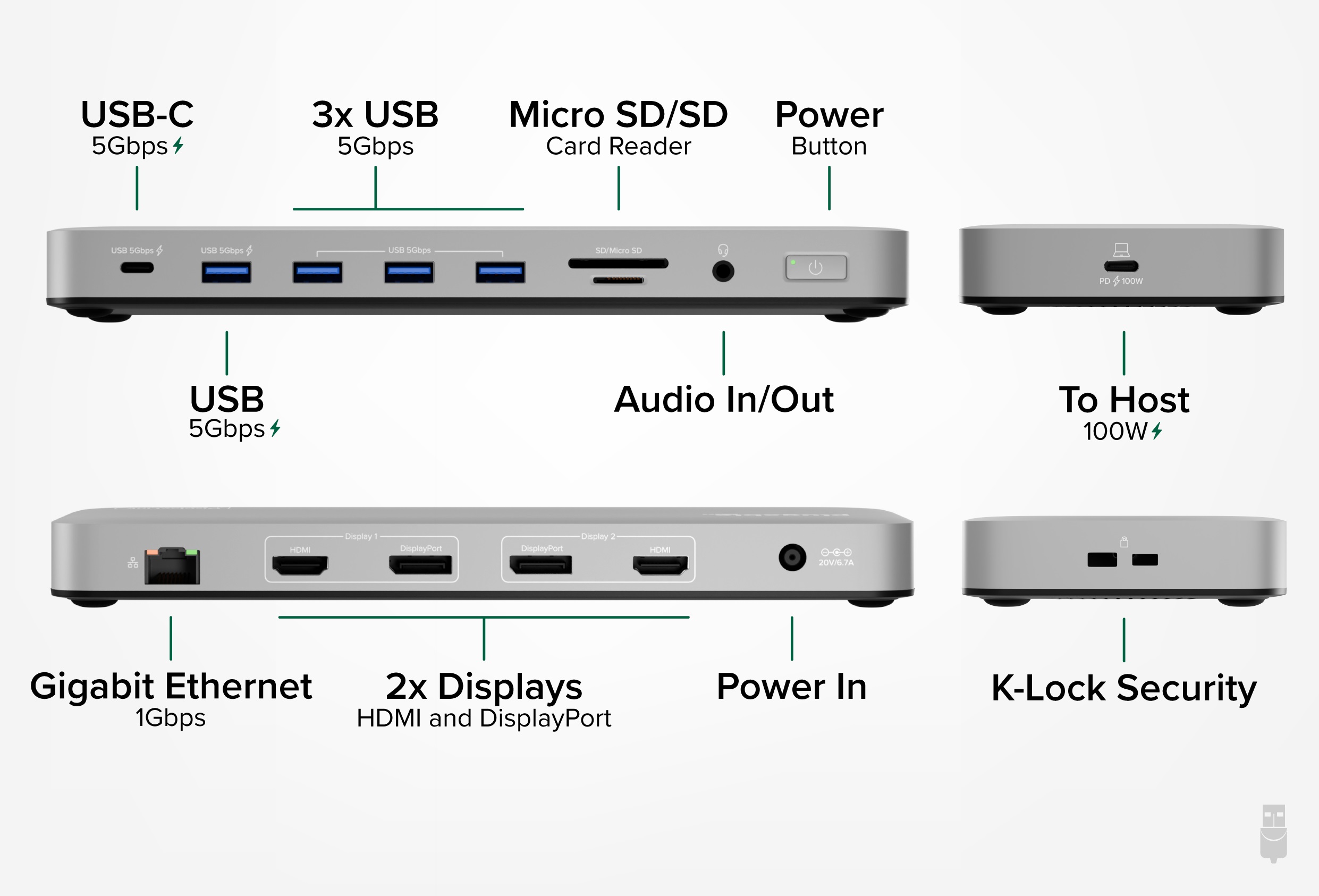
Best for: a permanent office workstation needing two DisplayLink screens, with permission to install the required software.
Pros
- Additional office desktops. Plugable specifies two screens up to 4K 60Hz through DisplayLink.
- A complete power arrangement. The included adapter and host cable support up to 100W laptop charging on compatible systems.
- Flexible monitor connections. HDMI or DisplayPort can be selected for each of its two display groups.
Cons and trade-offs
- Software becomes part of the display connection. Mac setup needs DisplayLink Manager and permissions; an employer may restrict installation.
- Protected entertainment is a poor fit. DisplayLink does not support HDCP-protected video. Plugable warns that protected playback can also be unavailable on other Mac screens while DisplayLink is active.
- More sockets do not mean faster storage. The 5Gbps host link is a reason to look elsewhere if fast external-drive transfers are central to your desk.
Choose something else if: your priority is gaming or demanding GPU work. Plugable does not recommend this DisplayLink dock for those workloads; start with a compatible native-video connection instead.
Our recommendation
Choose UD-6950PDH for additional office screens when native outputs do not cover your requirements. If a native-video dock already handles your monitors, its simpler display path gives you less reason to accept DisplayLink’s software dependency.
Sources: Plugable specifications and workload limitations; revision guide; protected-video guidance. Recommendation is editorial judgment.
Search Amazon for Plugable UD-6950PDH
Before buying: check the whole connection
- Identify the exact laptop and port. Check native display support, DisplayPort Alt Mode, USB speed and USB-C charging in its documentation.
- List the monitor targets. Record each screen’s input, resolution, refresh rate and whether you need different desktops.
- Check power delivered to the laptop. Do not substitute charger input wattage for the hub or dock’s host output.
- Use the intended cable. Begin with a dock’s supplied host cable. For replacements, match its documented power and data requirements; a charging cable is not proof of video support.
- Confirm the offer. Match A8383 or the current UD-6950PDH revision, condition, accessories and return terms. Our Amazon buttons are searches, not verified exact listings.
For a deeper port-by-port checklist, read how to choose a USB-C hub. If you need a separate power adapter, our 65W versus 100W USB-C charger guide explains how to budget for the laptop and other devices.
Hub and dock buying questions
Can a USB-C hub charge a laptop?
Yes, when that model supports pass-through charging and the laptop accepts it. A8383 is one example. Check the laptop output ceiling and provide a suitable separate charger.
Does a dock automatically add two independent Mac screens?
No. Check the exact Mac’s native support and the dock’s video technology. An MST splitter and a DisplayLink dock have different compatibility and setup requirements.
Is a docking station faster than a hub?
Not necessarily. These examples show why: the Anker advertises 10Gbps data ports, while the Plugable has a 5Gbps host link. Neither figure is a measured file-transfer result.
Should I replace a working hub with a dock?
Only when the dock solves a named problem. If your monitor, charging and accessories already work, keeping the hub is a reasonable choice.
Research method and sources
We checked the linked manufacturer specifications, revision documents and platform guidance on October 4, 2026. The examples illustrate two approaches, not a complete market ranking. Recommendations are our interpretation of documented capabilities. We did not test display stability, heat, charging, transfer speeds or latency, and have not verified live Amazon prices or retail revisions.
Key sources are linked beside the relevant claims. Read our research methodology for the limits of document-based buying advice.
Affiliate disclosure
As an Amazon Associate, The Gear Audit earns from qualifying purchases. We may earn an affiliate commission when you buy through our links, at no extra cost to you. Read our full affiliate disclosure.