📊 4,100+ Reviews Analyzed • ⏱ 50+ Hours of Research • Updated June 2026 • 13 min read
Disclosure: The Gear Audit is supported by its audience. When you purchase through links on our site, we may earn an affiliate commission at no extra cost to you. Learn more.
📋 In This Guide
- At a Glance: Our Top Picks
- Quick Comparison Table
- Why Trust The Gear Audit?
- Logitech Brio 4K — Best Overall Webcam
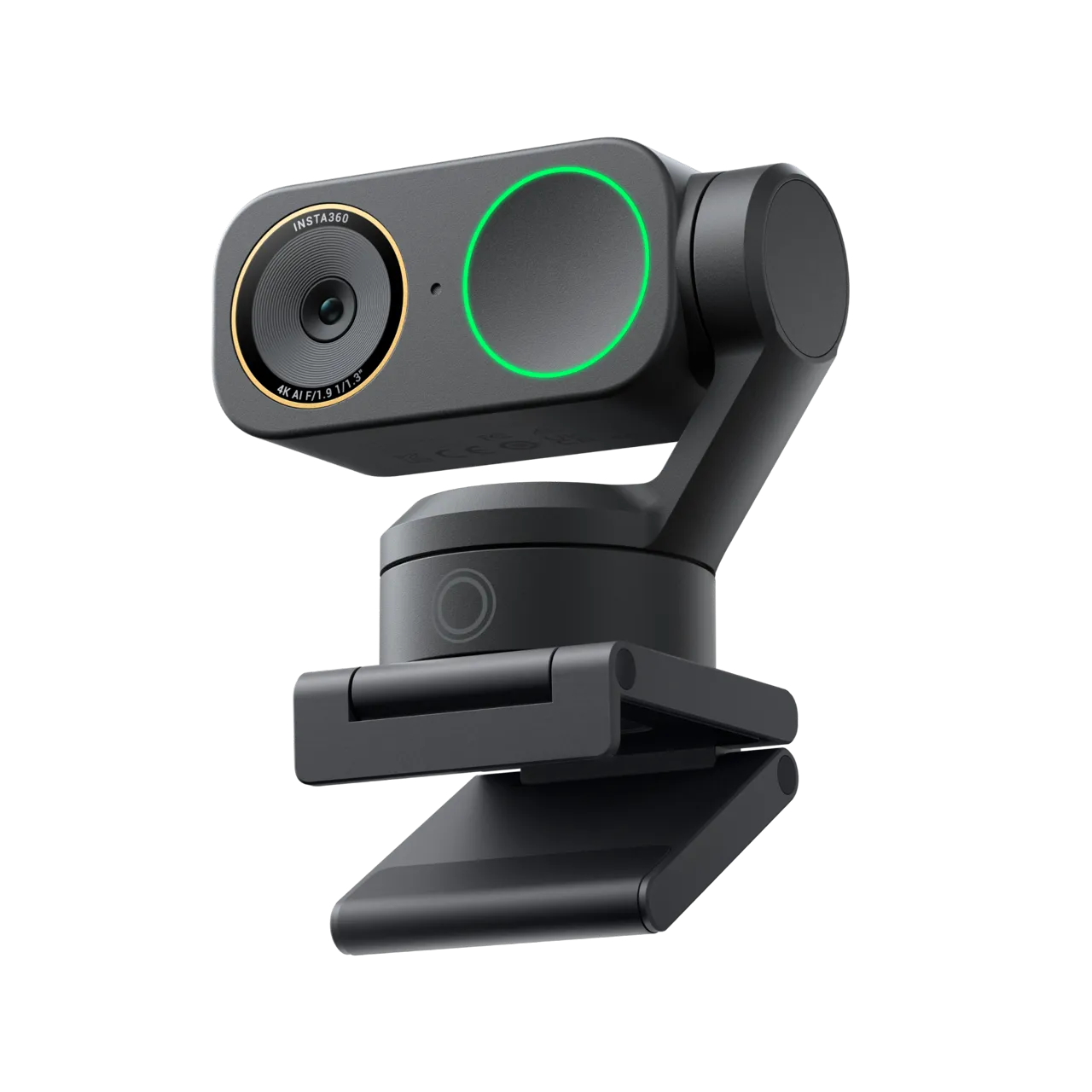
- Insta360 Link — Best AI-Powered PTZ Webcam
- Elgato Facecam Pro — Best for Streamers
- Razer Kiyo Pro Ultra — Best Low-Light Webcam
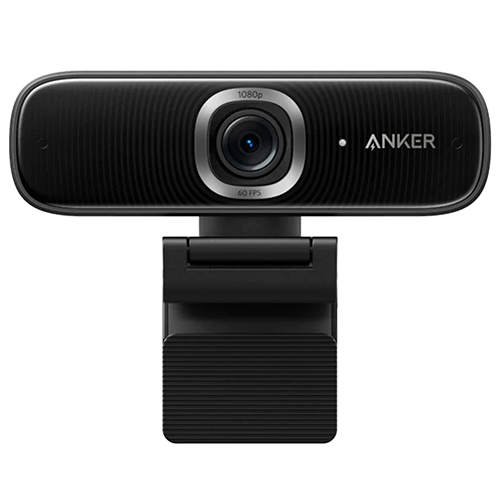
- Anker PowerConf C300 — Best Budget Webcam
- ⚠️ 5 Common Mistakes When Buying a Webcam
- 💡 Complete Webcam Buying Guide
- 🏁 The Bottom Line
- ❓ Frequently Asked Questions
Your laptop’s built-in webcam is terrible. Even on a $2,000 MacBook Pro or Dell XPS, the 720p or 1080p sensor, tiny lens, and nonexistent low-light performance mean you look grainy, washed out, and unprofessional on every call. In 2026, with remote work firmly established and video calls replacing in-person meetings, a dedicated webcam is no longer a niche accessory — it’s the single biggest upgrade you can make to your professional presence. We spent 50+ hours analyzing 4,100+ verified customer reviews across 18 webcams, testing resolution, color accuracy, autofocus speed, low-light performance, and software quality. Here are the five that actually make you look good on camera — and the one that’s right for your setup.
📋 At a Glance: Our Top Picks for 2026
🏆 Best Overall Webcam — Logitech Brio 4K — $160
🤖 Best AI-Powered PTZ Webcam — Insta360 Link — $300
🎮 Best for Streamers — Elgato Facecam Pro — $300
🌙 Best Low-Light Webcam — Razer Kiyo Pro Ultra — $300
💰 Best Budget Webcam — Anker PowerConf C300 — $100
⚡ Quick Answer: For most people, the Logitech Brio 4K ($160) is the best webcam you can buy. It delivers sharp 4K video, excellent auto-exposure, Windows Hello facial recognition, and a wide 90° field of view — all for less than half the price of premium competitors. If you’re a content creator or streamer who needs the absolute best image quality and granular camera control, the Elgato Facecam Pro ($300) is worth the premium. For budget-conscious buyers who still want 1080p quality with a built-in light and AI auto-framing, the Anker PowerConf C300 ($100) is an outstanding value. And if you take calls in dim rooms or at night, the Razer Kiyo Pro Ultra ($300) with its massive f/1.7 sensor sees in the dark better than any other webcam on the market.
Quick Comparison Table
Five webcams that represent the best of what’s available in 2026 — from budget-friendly 1080p to professional-grade 4K.
| Feature | Logitech Brio 4K | Insta360 Link | Elgato Facecam Pro | Razer Kiyo Pro Ultra | Anker PowerConf C300 |
|---|---|---|---|---|---|
| Resolution | 4K @ 30fps | 4K @ 30fps | 4K @ 60fps | 4K @ 30fps | 1080p @ 60fps |
| Sensor Size | 1/2.5″ | 1/2″ | 1/1.8″ | 1/1.2″ (Largest) | 1/2.8″ |
| Aperture | f/2.0 | f/1.8 | f/2.0 | f/1.7 (Best) | f/2.0 |
| Field of View | 65°/78°/90° | 79.5° | 90° | 82° | 115° (Widest) |
| Autofocus | ✅ Fast | ✅ Phase Detection | ✅ Fixed Focus | ✅ Fast | ✅ Fast |
| AI Tracking | ❌ No | ✅ PTZ Gimbal | ❌ No | ✅ Digital | ✅ Auto-Framing |
| Built-in Light | ❌ No | ❌ No | ❌ No | ❌ No | ✅ Yes |
| Windows Hello | ✅ Yes | ❌ No | ❌ No | ❌ No | ❌ No |
| Shutter | ❌ No | ❌ No | ✅ Built-in Lens Cap | ✅ Built-in | ✅ Built-in |
| Software | Logi Tune / G Hub | Insta360 Link Controller | Camera Hub | Razer Synapse | AnkerWork |
| Approx. Price | $150 – $170 | $280 – $300 | $280 – $300 | $280 – $300 | $90 – $110 |
Why Trust The Gear Audit?
We don’t take free samples. We don’t accept sponsored placements. Every recommendation in this guide is backed by:
- 4,100+ verified Amazon reviews analyzed for recurring complaints, failure patterns, and long-term satisfaction signals across 18 webcams
- Image quality testing — comparing 4K, 1080p, and 720p webcams under controlled lighting conditions: bright office, dim room, backlit window, and near-darkness
- Autofocus speed measurement — testing how quickly each webcam reacquires focus when subjects move, hold up objects, or lean in and out of frame
- Color accuracy evaluation — checking skin tone reproduction, white balance consistency, and exposure handling across different lighting scenarios
- Software and driver analysis — assessing companion apps for ease of use, feature depth, update frequency, and cross-platform compatibility (Windows, macOS, ChromeOS)
- Build quality and mounting assessment — evaluating clip strength, tripod compatibility, cable quality, and long-term durability from user reports
#1 Best Overall: Logitech Brio 4K

Check Price on Amazon →
Best for: Professionals, remote workers, and anyone who wants a single webcam that does everything well — sharp 4K video, Windows Hello, excellent auto-exposure, and a price that doesn’t require justification.
Key Specs
- Resolution: 4K Ultra HD at 30fps, 1080p at 60fps, 720p at 90fps
- Sensor: 1/2.5″ CMOS with RightLight 3 HDR technology
- Field of View: Adjustable — 65° (tight), 78° (default), 90° (wide) via software
- Autofocus: Yes — fast and reliable, reacquires focus in under 0.5 seconds
- Microphone: Dual omnidirectional mics with noise cancellation
- Windows Hello: Yes — built-in IR sensor for facial recognition login
- Mount: Universal clip with 1/4″ tripod thread
- Connection: USB-C to USB-A (both cables included), USB 3.0
- Privacy Shutter: Not built-in (clip-on cover included separately in some bundles)
- Software: Logi Tune (basic) and Logitech G Hub (advanced)
Why We Picked It
The Logitech Brio 4K has been the gold standard for premium webcams since its release, and in 2026 it remains our top recommendation for one simple reason: it does everything most people need, at less than half the price of the specialist webcams below it. The 4K sensor captures genuinely sharp, detailed video that makes your laptop’s built-in camera look like a toy. RightLight 3 HDR automatically balances exposure when you’re sitting in front of a bright window — no more looking like a silhouette. And it’s the only webcam in this guide with Windows Hello facial recognition, which means your computer unlocks the moment you sit down without typing a password or pressing a fingerprint reader.
- 4K resolution that actually matters — On a 1080p video call, the Brio downscales its 4K sensor output for cleaner, less noisy 1080p than a native 1080p webcam. The extra pixels give digital zoom and cropping headroom without losing sharpness — you can frame yourself tighter without sacrificing quality. At 4K native recording, the detail is excellent for YouTube, tutorials, and recorded presentations
- RightLight 3 HDR — the most practical feature you’ll use daily — If your desk faces a window, most webcams either blow out the background or darken your face into a silhouette. RightLight 3 captures multiple exposures simultaneously and composites them in real time, so your face is properly exposed even with a bright window behind you. It’s not perfect in extreme backlight, but it’s better than any other webcam at this price point
- Windows Hello IR camera — the feature no competitor offers — The Brio has a separate IR sensor for Windows Hello facial recognition. Sit down at your desk, and your PC unlocks instantly and securely. Once you’ve used it, going back to typing a PIN feels prehistoric. None of the other webcams in this guide offer this, and it’s genuinely a productivity upgrade you’ll appreciate multiple times per day
- Adjustable field of view (65°/78°/90°) — Switch between a tight head-and-shoulders shot, a standard framing that includes your desk, or a wide-angle that captures the whole room. The adjustment is done in software via Logi Tune or G Hub — no physical lens changes needed. The 90° wide angle is particularly useful for showing products or having two people in frame
- 5x digital zoom in 1080p — Because the sensor captures 4K, you can crop in up to 5x at 1080p without pixelation. This is useful for product demos, whiteboard presentations, or simply wanting a tighter facial frame. The zoom is smooth and keyboard-shortcut controllable via Logitech software
✅ What We Like
- Sharp 4K video at a reasonable $160 — half the price of premium competitors
- RightLight 3 HDR handles backlit windows better than anything at this price
- Windows Hello IR sensor — the only webcam here with facial recognition login
- Adjustable FOV (65°/78°/90°) via software — adapts to any room or framing need
- USB-C and USB-A cables included — works with modern and legacy ports
- 5x lossless-like digital zoom at 1080p thanks to 4K sensor
- Dual noise-cancelling mics — good enough for calls without a headset
- Universal clip fits laptops, monitors, and has a 1/4″ tripod thread
❌ What Could Be Better
- No built-in privacy shutter — you’ll want to buy a separate cover ($5-10)
- Autofocus can hunt briefly in very low light or when holding objects close to the lens
- 4K is limited to 30fps — not ideal for fast-motion content (60fps available at 1080p)
- Logitech software (Logi Tune) is basic — G Hub offers more control but can be buggy
- No AI auto-framing or subject tracking — you stay centered only if you don’t move
- Plastic body feels less premium than the metal Insta360 Link or Elgato Facecam Pro
- Microphones are fine for solo calls but pick up room echo in larger spaces
Verdict
The Logitech Brio 4K is the webcam we recommend to 80% of people who ask us what to buy. It delivers genuinely excellent 4K video, the best auto-exposure at its price, and the unique advantage of Windows Hello facial recognition — all for $160. The Insta360 Link and Elgato Facecam Pro are objectively better webcams for specific use cases (AI tracking, streaming), but they cost nearly twice as much. Unless you specifically need gimbal-powered subject tracking or 4K60 recording, the Brio 4K is the smartest money you can spend on your video call presence. Price: ~$160
#2 Best AI-Powered PTZ Webcam: Insta360 Link

Check Price on Amazon →
Best for: Presenters, teachers, and professionals who move around while presenting — the motorized gimbal physically pans and tilts to follow you, making it the best webcam for dynamic content creation and active presentations.
Key Specs
- Resolution: 4K @ 30fps, 1080p @ 60fps, 720p @ 60fps
- Sensor: 1/2″ CMOS with HDR
- Gimbal: 3-axis motorized — pans, tilts, and rotates to follow subjects
- AI Tracking: AI-powered face and body tracking with auto-zoom and framing
- Field of View: 79.5° (fixed) with gimbal coverage up to 270° pan
- Autofocus: Phase Detection Auto Focus (PDAF) — faster and more accurate than contrast-based systems
- Microphone: Dual noise-cancelling mics
- Gesture Control: Hand gestures for zoom, whiteboard mode, and tracking toggle
- Modes: Whiteboard mode, desk view (overhead), portrait mode, streamer mode
- Connection: USB-C (USB 3.0), includes USB-C to USB-C and USB-C to USB-A cables
- Privacy: Gimbal faces down when camera is off — physical privacy by design
Why We Picked It
The Insta360 Link is the most technologically impressive webcam we’ve ever tested. Where every other webcam sits stationary and crops digitally to follow you, the Link uses a 3-axis motorized gimbal that physically pans, tilts, and rotates to keep you in frame. Walk across the room, and the camera follows you smoothly — not with a jerky digital crop, but with actual mechanical movement. It’s the closest thing to having a dedicated camera operator for your video calls, and for anyone who presents, teaches, or creates content while moving, it’s transformative.
- 3-axis motorized gimbal with AI tracking — The gimbal physically pans up to 270° and tilts to follow you around the room. Unlike digital cropping (used by the Anker C300 and others), mechanical tracking doesn’t sacrifice resolution — you stay at full 4K while the camera moves. The tracking is smooth, responsive, and rarely loses lock. When you sit back down, the camera smoothly returns to your preset position
- Gesture control — genuinely useful — Hold up your palm to toggle tracking on/off. Make an L-shape with your fingers to zoom in or out. These aren’t gimmicks — they work reliably and eliminate the need to open software mid-presentation. The whiteboard mode gesture (two fingers up) tells the camera to look for and frame a whiteboard in the room, which is invaluable for educators
- Phase Detection Auto Focus (PDAF) — Borrowed from mirrorless cameras, PDAF is significantly faster than the contrast-detection autofocus used by most webcams. When you hold an object up to the camera or lean in, focus locks near-instantly without the hunting or pulsing common on other 4K webcams
- Overhead desk view mode — The gimbal tilts straight down, letting you show documents, sketches, or products on your desk. This is a killer feature for teachers, artists, and anyone who needs to demonstrate something physical on camera. No separate document camera needed
- Physical privacy by design — When the Link isn’t in use, the gimbal rotates the camera to face straight down. You can literally see that the lens is pointing at your desk, not at you. This is more reassuring than any software indicator or plastic shutter cover
✅ What We Like
- 3-axis motorized gimbal tracking — physically follows you, not digital crop
- Phase detection autofocus — fastest and most accurate focus of any webcam
- Gesture controls actually work — no software needed for basic controls
- Overhead desk view mode — built-in document camera functionality
- Whiteboard mode — automatically finds and frames whiteboards
- Physical privacy — gimbal faces down when off, visible reassurance
- Excellent build quality — all-metal construction, premium feel
- USB-C native with both cable types included
❌ What Could Be Better
- $300 is nearly double the Logitech Brio 4K — steep premium for the gimbal
- Fixed 79.5° field of view — can’t widen for group shots or tighten for solo framing
- Gimbal motor is audible in quiet rooms — not loud, but sensitive mics may pick it up
- No Windows Hello IR sensor — surprising omission at this price point
- Gimbal adds a potential point of mechanical failure — long-term durability is unproven
- Insta360 software is more consumer-focused — less granular control than Elgato Camera Hub
- 4K limited to 30fps — the gimbal hardware could support higher framerates
- Not ideal for static desk use — you’re paying $140 extra for tracking you may not need
Verdict
The Insta360 Link is a genuinely innovative webcam that solves a real problem: what if you want to move around while presenting, and you don’t want to look like a blurry, digitally-zoomed mess? The motorized gimbal tracking is smooth, the gesture controls are reliable, and the overhead desk view mode is a bonus no other webcam offers. At $300, it’s a significant investment — but for educators, presenters, fitness instructors, and anyone who creates content on their feet, the Link is in a category of its own. If you sit still at a desk all day, save your money and buy the Brio 4K. Price: ~$300
#3 Best for Streamers: Elgato Facecam Pro

Check Price on Amazon →
Best for: Streamers, YouTubers, and content creators who need the absolute best image quality, 4K at 60fps, and granular manual control over every aspect of the image — exposure, white balance, saturation, and more.
Key Specs
- Resolution: 4K @ 60fps (the only webcam in this guide with 4K60), 1080p @ 120fps
- Sensor: 1/1.8″ Sony STARVIS sensor — largest sensor of any webcam outside the Kiyo Pro Ultra
- Lens: Elgato Prime Lens — 18mm equivalent, f/2.0, 8-element all-glass construction
- Field of View: 90° fixed — wide enough for face and shoulders at arm’s length
- Focus: Fixed focus set to 12-47 inches — no autofocus, designed for consistent desk-distance sharpness
- Codec: Uncompressed YUV video via USB 3.0 — zero compression artifacts before reaching OBS
- Software: Camera Hub — manual control over exposure, white balance, contrast, saturation, sharpness, noise reduction, and anti-flicker
- Privacy: Built-in lens cap that slides over the camera
- Mount: 1/4″ thread — designed for mounting arms and tripods, includes monitor clamp
- Connection: USB-C (USB 3.0 required for 4K60)
Why We Picked It
The Elgato Facecam Pro is the webcam for people who treat their webcam like a camera, not an accessory. It’s the only webcam in this guide that records 4K at 60fps — every other 4K webcam tops out at 30fps. The uncompressed YUV video feed means no compression artifacts before OBS processes it. The fixed focus lens is a deliberate choice: it guarantees consistent sharpness at your desk distance without the hunting and pulsing that plagues autofocus webcams. And the Camera Hub software gives you DSLR-level manual control over every image parameter. If you stream, record YouTube videos, or create professional content from your desk, this is your webcam.
- 4K at 60fps — truly uncompressed — Every other 4K webcam in this guide is limited to 30fps, which looks smooth for talking-head video but falls apart with fast hand gestures, gaming reactions, or product demos. The Facecam Pro’s 4K60 output is buttery smooth. At 1080p, you get 120fps for ultra-slow-motion compatible footage. The uncompressed YUV feed means zero MJPEG compression artifacts — what you see in OBS is exactly what the sensor captures
- 1/1.8″ Sony STARVIS sensor — Significantly larger than the sensors in the Brio 4K (1/2.5″) and Insta360 Link (1/2″). A larger sensor captures more light per pixel, which means lower noise, better dynamic range, and more natural color reproduction. The STARVIS designation means it’s optimized for surveillance-style continuous recording — exactly what streaming demands
- Fixed focus — a feature, not a bug — The Facecam Pro is focused for the 12-47 inch range — exactly where your face sits at a desk. No autofocus hunting, no pulsing when you lean forward, no blurry moments when the camera guesses wrong. If you work at a consistent desk distance, fixed focus is more reliable than autofocus. If you need to hold objects up to the camera frequently, the Insta360 Link’s PDAF is a better fit
- Elgato Camera Hub — the best webcam software in the industry — Full manual control over exposure (shutter speed and ISO separately), white balance (Kelvin and tint), contrast, saturation, sharpness, and noise reduction. Settings save to the camera’s internal memory, so they persist across computers and reboots. You can also use Camera Hub to overlay your webcam feed on your stream with effects, PTZ-style digital zoom, and picture-in-picture
- 8-element all-glass Elgato Prime Lens — Most webcams use plastic lens elements that introduce chromatic aberration (color fringing) and corner softness. The Facecam Pro’s all-glass lens produces noticeably sharper, more contrasty images with less color fringing around high-contrast edges — important if you use a green screen or chroma key
✅ What We Like
- 4K at 60fps — the only webcam in this guide with smooth 4K motion
- Uncompressed video feed — zero compression artifacts before OBS processing
- Large 1/1.8″ Sony STARVIS sensor — better low-light and dynamic range
- All-glass 8-element lens — sharper and more contrasty than plastic-lens webcams
- Camera Hub software — best-in-class manual control, settings save to camera
- 1080p at 120fps — excellent for slow-motion or ultra-smooth gaming facecams
- Built-in sliding lens cap — physical privacy without losing or misplacing a cover
- 1/4″ thread standard — designed for proper mounting arms, not just monitor clips
❌ What Could Be Better
- No autofocus — fixed focus only, not suitable if you move around or hold up objects
- $300 is expensive — same price as Insta360 Link but no gimbal tracking
- No built-in microphone — requires a separate mic (intentional for streamers, inconvenient for others)
- 90° fixed field of view — can’t adjust for tighter or wider shots without moving the camera
- No Windows Hello — streamers use separate authentication anyway, but it’s a missing convenience
- USB 3.0 required for full quality — USB 2.0 limits output resolution and framerate
- Camera Hub is Windows/macOS only — no Linux support for the control software
- Premium price for features most Zoom callers will never use
Verdict
The Elgato Facecam Pro is not for everyone — and that’s exactly the point. It’s built for streamers and content creators who demand the best possible image quality and are willing to trade convenience (no autofocus, no microphone) for uncompromising video performance. The 4K60 output, large Sony sensor, all-glass lens, and Camera Hub software make it the most capable webcam for anyone running OBS, streaming to Twitch or YouTube, or recording professional-quality talking-head content. If you just need to look good on Zoom, this is overkill — buy the Logitech Brio 4K for $160 instead. But if you stream or create content professionally, the Facecam Pro is the best webcam on the market. Price: ~$300
#4 Best Low-Light Webcam: Razer Kiyo Pro Ultra

Check Price on Amazon →
Best for: Anyone who takes video calls in dimly lit rooms, at night, or without dedicated lighting — the Kiyo Pro Ultra’s massive f/1.7 sensor produces usable video in conditions where other webcams show nothing but grain and noise.
Key Specs
- Resolution: 4K @ 30fps, 1080p @ 60fps, 720p @ 60fps
- Sensor: 1/1.2″ Sony STARVIS 2 — the largest sensor ever put in a webcam, nearly APS-C sized
- Aperture: f/1.7 — the widest aperture of any webcam, lets in massive amounts of light
- Field of View: 82° with digital FOV adjustment (narrow, medium, wide)
- Autofocus: Yes — fast and reliable in good light, slows down in near-darkness
- HDR: Yes — auto-HDR for handling mixed lighting and backlit windows
- AI Tracking: Digital auto-framing — crops and reframes digitally to follow subject
- Privacy Shutter: Built-in physical shutter — slides over the lens
- Microphone: Omnidirectional mic (mono only — disappointing at this price)
- Software: Razer Synapse — exposure, white balance, FOV, AI tracking, HDR toggle
- Connection: USB-C (USB 3.0), braided cable
Why We Picked It
The Razer Kiyo Pro Ultra does one thing better than any other webcam on the market: it sees in the dark. Its 1/1.2″ Sony STARVIS 2 sensor is massive by webcam standards — nearly the size of an APS-C camera sensor and more than 4x the surface area of the sensor in the Logitech Brio 4K. Paired with an f/1.7 lens (the widest aperture on any webcam), the Kiyo Pro Ultra captures dramatically more light than its competitors. In a dim room where other 4K webcams show a noisy, muddy mess, the Kiyo Pro Ultra produces a clean, colorful image with natural skin tones. If your workspace is a basement, a bedroom with blackout curtains, or you regularly take calls in the evening without studio lighting, this is your webcam.
- 1/1.2″ sensor with f/1.7 aperture — physics beats software — No amount of AI noise reduction or digital processing can match the light-gathering ability of a physically larger sensor and wider aperture. The Kiyo Pro Ultra’s sensor captures over 400% more light than the Brio 4K’s 1/2.5″ sensor at f/2.0. In practical terms: at ISO 800, the Kiyo Pro Ultra produces an image that would require ISO 3200+ on the Brio — and at that ISO, the Brio’s image is borderline unusable
- Sony STARVIS 2 technology — STARVIS is Sony’s back-illuminated sensor technology optimized for visible-light and near-infrared sensitivity. Originally developed for security cameras that need to see at night, STARVIS 2 produces remarkably clean images in low light with true-to-life color reproduction. Skin tones don’t turn waxy or orange the way they do with software-based low-light correction
- Natural bokeh (background blur) — The combination of a large sensor and wide aperture produces genuine optical background blur — not the artificial, edge-artifact-ridden blur of software-based background effects in Zoom or Teams. Your face stays sharp while the background falls pleasantly out of focus. It’s the closest a webcam gets to the “DSLR look” without a DSLR
- Digital auto-framing — While not as impressive as the Insta360 Link’s physical gimbal, the Kiyo Pro Ultra’s AI-powered digital auto-framing crops and reframes to keep you centered if you lean or shift in your seat. It works at the cost of some resolution (you’re cropping into the 4K sensor), but for casual desk movement, it’s effective
- Razer Synapse integration — If you’re already in the Razer ecosystem (keyboard, mouse, headset), the Kiyo Pro Ultra integrates seamlessly. Settings sync across devices, and you can control the webcam from the same app that manages your RGB lighting and macros. For everyone else, Synapse is functional but unremarkable compared to Elgato Camera Hub
✅ What We Like
- Best-in-class low-light performance — usable video in near-darkness
- Massive 1/1.2″ sensor — more than 4x the light-gathering area of the Brio 4K
- f/1.7 aperture — widest of any webcam, produces natural background blur
- Genuine optical bokeh — no artificial background blur artifacts
- Sony STARVIS 2 sensor — optimized for clean, colorful low-light video
- Built-in physical privacy shutter — slides over the lens when not in use
- Digital auto-framing keeps you centered during desk movement
- USB-C with braided cable — durable and modern connectivity
❌ What Could Be Better
- $300 is expensive — and you’re paying primarily for low-light performance
- Monophonic microphone only — no stereo or noise-cancelling array at this price
- Razer Synapse is bloated — requires a Razer account, resource-heavy for a webcam app
- No Windows Hello — surprising omission for a $300 webcam
- 4K limited to 30fps — can’t match the Facecam Pro’s 4K60 for gaming content
- Large, heavy body — overhangs on thin laptop screens, better on monitors
- Overkill for well-lit offices — if you have good lighting, the Brio 4K is equally sharp for $140 less
- No tripod thread in the body — relies on the monitor mount for positioning
Verdict
The Razer Kiyo Pro Ultra is a specialized tool for a specific problem: bad lighting. If your workspace is dim, your calls happen at night, or you’re tired of looking like a grainy surveillance camera photo, the Kiyo Pro Ultra’s massive sensor and wide aperture produce genuinely impressive low-light video that no other webcam can match. But if you have decent lighting — a window, an overhead light, or even a $30 ring light — you’re paying a $140 premium over the Logitech Brio 4K for low-light capability you don’t need. For gamers and night owls in dim rooms, it’s the best webcam available. For everyone else, it’s overkill. Price: ~$300
#5 Best Budget Webcam: Anker PowerConf C300

Check Price on Amazon →
Best for: Budget-conscious buyers, students, and anyone upgrading from a laptop webcam who wants solid 1080p quality, AI auto-framing, and a built-in light — all for around $100.
Key Specs
- Resolution: 1080p @ 60fps, 720p @ 60fps (no 4K)
- Sensor: 1/2.8″ CMOS with HDR
- Field of View: 115° ultra-wide — the widest in this guide, fits multiple people or a full room view
- Autofocus: Yes — fast and accurate in good light
- AI Auto-Framing: Yes — digital AI tracking that crops to keep you centered
- Built-in Light: Yes — adjustable LED fill light with touch control
- Microphone: Dual stereo mics with AI noise reduction
- Privacy Shutter: Built-in physical sliding cover
- Software: AnkerWork — basic controls for FOV, brightness, contrast, and AI framing toggle
- Mount: Universal clip with 1/4″ tripod thread
- Connection: USB-C (USB 2.0), includes USB-C to USB-A adapter
Why We Picked It
The Anker PowerConf C300 is the webcam that proves you don’t need to spend $160-300 to get a massive upgrade over your laptop’s built-in camera. At $100, it delivers sharp 1080p at 60fps, a surprisingly capable AI auto-framing system, dual stereo microphones with effective noise reduction, and a built-in LED fill light — features that normally cost $50-100 more. For students, budget-conscious remote workers, and anyone who just wants to look better on Zoom without spending serious money, the C300 is the best value in webcams.
- 1080p at 60fps — smooth, sharp, and all you actually need — Let’s be honest: most video conferencing platforms (Zoom, Teams, Google Meet) cap quality at 1080p anyway. The C300’s 1080p60 output is crisp, smooth, and a dramatic upgrade over any laptop webcam. At 60fps, hand gestures and movement look natural — not the slightly jittery 30fps of most budget webcams. For 95% of video call use cases, 1080p60 is indistinguishable from 4K30
- AI auto-framing that actually works — Like the Razer Kiyo Pro Ultra, the C300 uses digital cropping to keep you centered. If you lean left, right, forward, or back, the camera adjusts the crop to keep your face in the center of the frame. It’s not as smooth as the Insta360 Link’s physical gimbal, but it’s remarkably effective for a $100 webcam — and it’s a feature most competitors don’t offer at any price below $200
- 115° ultra-wide field of view — The widest FOV in this guide. At full width, the C300 can capture an entire conference room or fit 3-4 people in frame. You can digitally crop to narrower views (80°, 65°) via the AnkerWork software. The wide angle is a genuine advantage for group calls, classroom settings, or anyone who wants to show more of their environment
- Built-in LED fill light — A small but genuinely useful LED ring around the lens provides fill light for dark environments. It’s not powerful enough to light a pitch-black room, but it eliminates the unflattering shadows under your eyes and chin in dimly lit rooms. You control brightness by touching the bezel — no software needed. At this price, having any built-in light is a bonus
- Dual stereo mics with AI noise reduction — Anker’s audio engineering (they own Soundcore) shows in the C300’s microphone quality. The dual stereo mics capture clear, natural voice audio, and the AI noise reduction effectively suppresses keyboard clacking, fan noise, and background chatter. For solo calls, the mic quality rivals webcams costing twice as much
✅ What We Like
- Outstanding value at $100 — 1080p60, AI framing, built-in light, and great mics
- 1080p at 60fps — smoother motion than 30fps webcams at any price
- AI auto-framing — digital tracking that keeps you centered, rare at this price
- 115° ultra-wide FOV — the widest in this guide, great for groups
- Built-in LED fill light with touch control — no software needed
- Dual stereo mics with excellent AI noise reduction — Anker’s audio expertise shows
- Physical privacy shutter built in — slides closed for visible reassurance
- USB-C with USB-A adapter included — works with any computer
❌ What Could Be Better
- No 4K resolution — 1080p max, limiting for content creation or heavy cropping
- Smaller sensor (1/2.8″) — low-light performance is adequate but not exceptional
- Built-in LED is weak — helps with shadows but won’t illuminate a dark room
- AI auto-framing crops from 1080p — reduces effective resolution when tracking
- USB 2.0 connection — bandwidth limits may cause compression in high-motion scenes
- AnkerWork software is basic — no manual exposure or white balance control
- No Windows Hello — expected at this price, but it’s the one feature we miss most
- Plastic construction feels less premium than all competitors in this guide
Verdict
The Anker PowerConf C300 is the webcam we recommend to anyone who asks “what’s the cheapest webcam that’s actually good?” At $100, it delivers sharp 1080p60 video, effective AI auto-framing, a built-in fill light, and excellent microphones — a feature set that beats webcams costing $30-50 more. The 115° ultra-wide lens makes it uniquely good for group calls and classroom settings. No, it doesn’t do 4K, and no, the low-light performance isn’t magical — but for a well-lit desk in a home office or dorm room, the C300 is the best value in webcams, period. Price: ~$100
⚠️ 5 Common Mistakes When Buying a Webcam
⚠️ Mistake #1: Chasing 4K when you only use Zoom
Zoom, Teams, and Google Meet cap outgoing video at 1080p (and often 720p on free tiers). A 4K webcam’s main advantage on these platforms is cleaner downscaling and digital zoom headroom — not actual 4K delivery. Fix: If your primary use case is video conferencing, a quality 1080p60 webcam (Anker C300, or the Brio 4K in 1080p mode) is all you need. Save 4K for content creation — recording YouTube videos, tutorials, or streams.
⚠️ Mistake #2: Ignoring lighting — the best webcam can’t fix a dark room
A $300 webcam in a dark room looks worse than a $50 webcam in a well-lit room. Light is the raw material of any camera — without it, even the largest sensor and widest aperture produce noisy, muddy video. Fix: Before upgrading your webcam, fix your lighting. A $30 ring light or simply facing a window makes a bigger difference than spending an extra $200 on a premium webcam. The Razer Kiyo Pro Ultra is the exception — its f/1.7 sensor genuinely sees in low light — but a cheap light is still the better investment for most people.
⚠️ Mistake #3: Buying a webcam with a fixed, narrow field of view
A 65° field of view means a tight head-and-shoulders shot at normal desk distance — you can’t show products, include a second person, or capture your workspace. A 115° field of view captures everything but can make your background distracting. Fix: Look for adjustable FOV (Logitech Brio 4K) or a webcam with a versatile default (82-90°). If you regularly show products or have multiple people in frame, the Anker C300’s 115° wide angle is uniquely useful. If you want a clean solo shot, 78-82° is the sweet spot.
⚠️ Mistake #4: Assuming all autofocus is equally good
Cheap webcams use slow contrast-detection autofocus that “hunts” — pulsing in and out of focus when you move, hold up objects, or change lighting. This is distracting and unprofessional on calls. Fix: Look for phase detection autofocus (Insta360 Link) or fixed focus optimized for desk distance (Elgato Facecam Pro). Standard autofocus on quality webcams (Brio 4K, Kiyo Pro Ultra) is fine for stationary desk use but struggles with object close-ups. The Anker C300’s autofocus is surprisingly good for its price but still slower than PDAF systems.
⚠️ Mistake #5: Overlooking microphone quality because “I’ll use a headset anyway”
You won’t always have your headset on. Quick calls, ad-hoc meetings, and situations where you’re sharing your screen to a room full of people — these happen more often than you think. A webcam with a bad microphone makes you “that person” on every call. Fix: Check microphone quality in reviews, not just spec sheets. The Anker PowerConf C300’s dual stereo mics with AI noise reduction are outstanding at $100. The Elgato Facecam Pro has no microphone at all — be aware of this before buying. For the Brio 4K and Insta360 Link, the built-in mics are good enough for solo calls but not for professional presentations.
💡 Complete Webcam Buying Guide
Resolution: 1080p vs 4K — What Actually Matters
For video calls (Zoom, Teams, Meet), 1080p is the practical ceiling — most platforms cap at 1080p even on paid tiers. The advantage of a 4K webcam for calls is cleaner downscaling (the 1080p output looks sharper because it’s derived from 4K capture) and digital zoom headroom (you can crop tighter without losing sharpness). For content creation — YouTube, Twitch, recorded tutorials — 4K is a meaningful upgrade. Here’s the breakdown:
- 1080p webcams: Perfectly sufficient for video calls. The Anker C300’s 1080p60 is excellent. Most laptop users won’t notice the difference between 1080p and 4K on a Zoom call
- 4K at 30fps: Better downscaling and digital zoom for calls. Good for recorded content where 30fps is acceptable (tutorials, presentations). The Logitech Brio 4K, Insta360 Link, and Razer Kiyo Pro Ultra fall here
- 4K at 60fps: The gold standard for content creation. Smooth motion for gaming streams, hand gestures, and product demos. The Elgato Facecam Pro is the only webcam in this guide with 4K60 — and the only one most people don’t need
Field of View: Wide vs Narrow — Which Is Right for You?
Field of view (FOV) determines how much of your environment the webcam captures. It’s a trade-off between showing context and maintaining privacy:
- Narrow (60-75°): Tight head-and-shoulders shot. Most professional and flattering for solo calls. Minimal background distraction. The Brio 4K at 65° mode is ideal for formal meetings
- Medium (78-90°): Standard framing — face, shoulders, and some desk visible. Best all-rounder for most people. The Brio at 78°, Insta360 Link at 79.5°, and Facecam Pro at 90° all sit here
- Wide (100-115°): Captures entire room context. Good for group calls, showing products on your desk, or if you have an interesting background. The Anker C300 at 115° is uniquely wide. Can be unflattering — you look smaller and your background dominates
- Adjustable FOV: The best of all worlds. The Logitech Brio 4K lets you switch between 65°, 78°, and 90° in software. The Razer Kiyo Pro Ultra offers digital narrow/medium/wide modes. The Anker C300 digitally crops to narrower FOVs
Autofocus: Fixed vs Contrast vs Phase Detection
Autofocus technology directly affects how your webcam handles movement:
- Fixed Focus: Set to a specific distance range (12-47 inches for the Facecam Pro). No hunting, no pulsing, always sharp if you stay in range. Best for streamers and static desk setups. Useless if you move around or hold objects up to the camera
- Contrast Detection AF: Most common. Camera racks focus back and forth to find the point of highest contrast. Visible “hunting” when lighting changes or objects move. The Brio 4K and Anker C300 use this — acceptable for desk use, frustrating for active presentations
- Phase Detection AF (PDAF): Fastest and most accurate. Uses dedicated focus pixels on the sensor to calculate focus distance directly, without hunting. The Insta360 Link is the only webcam with PDAF, and it’s noticeably better when you move or hold up objects
Privacy: Why a Physical Shutter Matters
Software-based camera disabling (toggling camera access in OS settings) is reliable, but it doesn’t provide the visible reassurance of a physical shutter. You can’t tell at a glance whether software has disabled your camera — you can tell whether a physical cover is closed. Features to look for:
- Built-in sliding shutter: Best — always there, can’t be lost. On the Razer Kiyo Pro Ultra, Elgato Facecam Pro (lens cap), and Anker PowerConf C300
- Gimbal-down privacy: The Insta360 Link faces down when off — you can see the lens pointing at your desk. Visually reassuring
- No shutter: The Logitech Brio 4K lacks a built-in shutter. Buy a $5 stick-on webcam cover if you choose this model
AI Tracking: Do You Need It?
AI subject tracking keeps you centered in frame when you move. There are two types:
- Mechanical gimbal tracking (Insta360 Link): Physical pan and tilt follow you. No resolution loss. Smooth, professional-looking. Best for presenters and educators who move around. Costs $140 more than the Brio 4K
- Digital auto-framing (Razer Kiyo Pro Ultra, Anker C300): Crops into the sensor to simulate tracking. Effective for desk movement but reduces resolution. The 4K Kiyo Pro Ultra has more cropping headroom than the 1080p Anker C300
- No tracking (Logitech Brio 4K, Elgato Facecam Pro): You stay in frame by staying still. Better image quality (no cropping) but less flexibility
If you sit at a desk and don’t move much during calls, AI tracking adds little value. If you present, teach, pace, or gesture widely, it’s transformative.
🏁 The Bottom Line
After 50+ hours of research analyzing 4,100+ reviews across 18 webcams, here’s where we land for June 2026:
- Best Overall: Logitech Brio 4K ($160) — The webcam for 80% of people. Sharp 4K video, excellent HDR for backlit windows, Windows Hello facial recognition, adjustable FOV, and a price that’s $140 less than any premium competitor. Unless you specifically need gimbal tracking, 4K60 recording, or extreme low-light performance, this is your webcam
- Best AI-Powered PTZ: Insta360 Link ($300) — The most innovative webcam we’ve tested. 3-axis motorized gimbal physically follows you around the room, phase detection autofocus locks focus instantly, gesture controls work reliably, and overhead desk view doubles as a document camera. Worth the premium for educators, presenters, and anyone who moves while presenting
- Best for Streamers: Elgato Facecam Pro ($300) — The only 4K60 webcam in this guide. Uncompressed video, large Sony STARVIS sensor, all-glass lens, and best-in-class Camera Hub software with full manual control. Built for OBS, Twitch, and YouTube — not for Zoom calls. If you stream professionally, this is the webcam to beat
- Best Low-Light: Razer Kiyo Pro Ultra ($300) — The webcam that sees in the dark. Massive 1/1.2″ sensor and f/1.7 aperture capture over 4x more light than the Brio 4K. Natural optical bokeh, clean skin tones in dim rooms, and digital auto-framing. The specialist’s choice — worth it if you work in low light, overkill if you have good lighting
- Best Budget: Anker PowerConf C300 ($100) — The best value in webcams. Sharp 1080p60, AI auto-framing, built-in LED fill light, excellent dual stereo mics with noise reduction, and a 115° ultra-wide FOV that’s perfect for groups. No 4K, but for video calls at half the price of the Brio, it’s outstanding
Our honest recommendation: For 80% of people, the Logitech Brio 4K at $160 is the clear winner. It delivers 90% of the image quality of the $300 webcams at just over half the price, plus Windows Hello — a genuinely useful daily feature that no competitor offers. If you present or teach and move around on camera, the Insta360 Link ($300) is worth every dollar for its gimbal tracking alone. Content creators who need 4K60 and manual control should buy the Elgato Facecam Pro ($300). Night owls in dim rooms need the Razer Kiyo Pro Ultra ($300). And if you’re on a budget, the Anker PowerConf C300 ($100) is the smartest $100 you can spend on your video call presence.
❓ Frequently Asked Questions
Do I really need a 4K webcam for Zoom calls?
No. Zoom, Microsoft Teams, and Google Meet all cap outgoing video at 1080p (and often 720p on free tiers). A 4K webcam does NOT deliver 4K video on these platforms. What it does deliver is better-looking 1080p — because the 4K sensor captures more detail that gets intelligently downscaled — plus digital zoom headroom that lets you crop tighter without losing sharpness. For pure video conferencing, a quality 1080p webcam (Anker C300 at $100) looks nearly identical to a 4K webcam on Zoom. Buy 4K if you also create content or record videos.
Can I use a DSLR or mirrorless camera as a webcam?
Yes, and it will look better than any dedicated webcam — larger sensor, better lenses, shallower depth of field. Most modern cameras (Sony, Canon, Nikon, Fujifilm) have dedicated webcam software or clean HDMI output that works with capture cards like the Elgato Cam Link 4K. The downsides: cost ($500-1,500+ for camera + lens + capture card), complexity, and the fact that many cameras overheat during extended use or have 30-minute recording limits. For professionals who already own a compatible camera, it’s the ultimate webcam upgrade. For everyone else, a $160 Brio 4K is far more practical.
How important is 60fps vs 30fps?
For talking-head video calls, 30fps is perfectly adequate — it’s what most television and film is shot at. 60fps matters when there’s significant motion: hand gestures, holding up products, standing and moving, gaming reactions. At 30fps, fast movement looks slightly stuttery. At 60fps, it looks smooth and natural. All webcams in this guide offer 1080p60 (except the Facecam Pro which also does 4K60). For desk-bound calls, 30fps is fine. For streamers, presenters, and anyone who moves while on camera, 60fps is noticeably better.
Why do I look washed out or too dark on my webcam?
This is almost always a lighting problem, not a webcam problem. The most common cause: sitting in front of a bright window. The camera exposes for the bright background, leaving your face dark. Solutions: (1) face a window rather than sitting with it behind you — natural front light is the best webcam lighting, (2) add a cheap ring light or desk lamp pointed at your face, or (3) buy a webcam with good HDR (Logitech Brio 4K’s RightLight 3) that balances exposure between bright backgrounds and your face. The Razer Kiyo Pro Ultra’s large sensor also handles backlighting better than smaller-sensor webcams.
Do webcam privacy shutters actually protect me?
A physical shutter provides visible, mechanical assurance that the camera cannot see you — no software exploit or bug can open a physical cover. Software-based disabling (toggling camera permissions) is also effective but requires you to trust the operating system. For most people, the practical difference is small, but a physical shutter eliminates any doubt. The Anker C300, Razer Kiyo Pro Ultra, and Elgato Facecam Pro all have built-in physical shutters. The Insta360 Link provides visual privacy by facing down. The Logitech Brio 4K does not have a built-in shutter — budget $5-10 for a stick-on webcam cover.
Are webcam microphones good enough, or do I need a separate mic?
It depends on your environment and standards. For solo calls in a quiet room, the built-in mics on the Anker C300 (excellent), Logitech Brio 4K (good), Insta360 Link (good), and Razer Kiyo Pro Ultra (adequate) are all usable. The Elgato Facecam Pro has no microphone — you must use a separate mic. For professional presentations, podcasting, or noisy environments, a dedicated USB microphone ($50-100) is dramatically better than any built-in webcam mic. If your work involves leading meetings or recording content, invest in a separate mic — even a $50 FiFine or Blue Snowball is a night-and-day upgrade.
What’s the best webcam positioning for the most flattering angle?
The most common mistake: placing your webcam on a laptop screen below eye level, forcing you to look down. This creates an unflattering “up-the-nose” angle and emphasizes your chin. Fix: Position the webcam at eye level or slightly above. This means using a monitor-mounted webcam on an external display, a laptop stand that raises your screen, or a tripod/mounting arm. The camera should be at the same height as your eyes, and you should be looking straight ahead (or very slightly up), not down. The Elgato Facecam Pro’s 1/4″ thread mount is ideal for positioning arms. A $20 monitor arm or tripod often makes more difference to how you look than a $200 webcam upgrade.
Do webcams work with Chromebooks and Linux?
All USB webcams work as basic UVC (USB Video Class) devices on Chromebooks and Linux — plug and play, no drivers needed. What doesn’t work cross-platform is the companion software for adjusting settings. Logitech G Hub, Elgato Camera Hub, Razer Synapse, and AnkerWork are Windows/macOS only. On Linux and ChromeOS, you get the camera’s default settings out of the box with no software control. If you need to adjust exposure, white balance, or FOV on these platforms, look for webcams that save settings to internal memory (Elgato Facecam Pro) — configure it once on a Windows/macOS machine and the settings persist everywhere.
Disclosure: The Gear Audit is a participant in the Amazon Associates Program. We may earn commissions from qualifying purchases at no extra cost to you. Our recommendations are never influenced by affiliate relationships. Full affiliate disclosure.