How to Choose a Portable Monitor: Complete Buying Guide (2026)
By The Gear Audit Team | Research checked October 16, 2026
The quick buying answer
Choose a portable monitor by checking the video connection and power route first, then screen fit, text size and stand position. A USB-C socket alone does not guarantee a picture, and a monitor that accepts USB power does not necessarily charge your laptop. Write down your exact computer, its video-capable port and where the monitor’s power will come from before comparing display specifications.
For a compact document-focused setup, the Lenovo ThinkVision M14d illustrates a 14-inch, 16:10 USB-C approach. The ASUS ZenScreen MB16AHG illustrates a larger 15.6-inch option with mini-HDMI and a higher refresh rate. These are two worked examples of the buying process; neither is an overall winner.
1. Start with the device that will send the picture
Look up the technical specifications for your exact laptop, tablet or handheld. For the USB-C inputs on our examples, look for DisplayPort Alt Mode video support on the source port. Then check the connecting cable: a cable sold principally for charging is not evidence of video support. Microsoft’s USB-C troubleshooting guidance explicitly asks buyers to verify the computer, display and cable together; VESA’s DisplayPort FAQ explains the video capability behind the connector.
Draw the route all the way from the computer to the monitor. If you plan to insert a dock, its particular output must support the required display connection. A dock’s USB-C charging input and its accessory sockets may do different jobs. Do not assume every spare socket can send video to a portable screen.
A direct USB-C monitor becomes a sensible candidate. Check available power separately, and keep the supplied or explicitly video-capable cable with the screen.
Choose a monitor with a documented HDMI input and plan a separate monitor power lead. The MB16AHG uses mini-HDMI, so check both cable ends.
For the cable decision itself, see our USB-C charging versus data cable guide. For a larger display connected through an adapter, our USB-C to HDMI versus DisplayPort guide addresses a different purchase.
2. Separate monitor power from laptop charging
There are three different arrangements to consider. In a laptop-powered setup, the computer supplies the monitor as well as sending the picture; that extra load uses laptop battery energy. With separate monitor power, an adapter feeds the screen while another connection carries video. With documented power pass-through, a compatible external supply connects through the monitor to a chargeable computer.
These arrangements can involve the same connector shape. Read the monitor’s power instructions rather than counting USB-C sockets. Lenovo describes up to 65W pass-through for the M14d. ASUS describes the MB16AHG’s USB-C sockets as video and power inputs; its manual calls for the supplied adapter when using HDMI and recommends it for best performance. This guide does not treat those inputs as a laptop-charging output.
A pass-through ceiling also does not establish the power your laptop will receive. Match the monitor’s instructions, charger, cable and laptop charging requirement, allowing for the screen’s own consumption. If a computer needs more charging power than the monitor supports, plan to charge the laptop directly. Do not buy a portable display on the assumption that a nominal 15W input or output will keep every laptop charged.
A useful buying test
Write a one-line setup plan: “Computer port → video cable → monitor; power comes from ___; laptop charging comes from ___.” If either blank is unresolved, finish that compatibility check before ordering the screen.
3. Choose for readable work and the surface you actually have
Screen diagonal is only part of portability. Measure the bag compartment and the desk area beside your laptop, including the stand footprint and cable exits. Add the sleeve, adapter and cables to your carrying plan. Manufacturer monitor weights are not complete travel-kit weights, and weight definitions can differ between brands.
Resolution and scaling belong together. More pixels can make text finer, but comfortable scaling determines how much content you will actually use. The M14d’s 2240 × 1400, 16:10 layout is one route to a compact reading screen. The MB16AHG’s 1920 × 1080, 16:9 panel provides a physically wider display. Neither specification makes tiny unscaled text a good buying target. Try comparable screen sizes and scaling settings when possible.
Choose refresh rate for your work. If the second display mainly holds reference documents or a chat window, we would prioritize fit and connectivity over a high refresh ceiling. If scrolling or compatible games are a central reason to buy, the ASUS’s up-to-144Hz capability is relevant. Confirm the actual mode supported by your source and connection; the number on the monitor listing is not a game-performance guarantee.
Brightness and finish need context. Both examples have an anti-glare surface and a manufacturer typical-brightness specification of 300cd/m². That does not establish direct-sunlight readability or equal measured performance. For window-side or outdoor work, look for evidence in the intended lighting and a workable return policy rather than a universal “outdoor-ready” brightness threshold. A color-gamut claim likewise does not certify calibration accuracy for color-critical editing.
Check where the top edge will sit. A low kickstand can leave a second screen below a raised laptop. If you need height adjustment, verify the actual range or a compatible mounting arrangement; “adjustable” may mean tilt only. Check portrait support separately if your main use is long documents.
Two examples that expose different buying trade-offs
| Decision | Lenovo ThinkVision M14d | ASUS ZenScreen MB16AHG |
|---|---|---|
| Exact identity | M14d; current US page identifies 63AAUAR6US, Raven black | MB16AHG; dark gray model in the ASUS manual |
| Screen layout | 14-inch IPS; 2240 × 1400; 16:10; 60Hz | 15.6-inch IPS; 1920 × 1080; 16:9; up to 144Hz |
| Video inputs | Two USB-C ports with DP 1.2 Alt Mode; no HDMI input listed | Two USB-C DP Alt Mode inputs; one mini-HDMI input |
| Power planning | Up to 65W pass-through documented; external adapter not included in PSREF package | Use supplied adapter for HDMI; manual warns inadequate USB-C power can limit brightness |
| Manufacturer weight | Approximately 0.6kg with stand | Approximately 0.92kg net, listed as without stand in US specifications |
| Positioning | −5° to +95° tilt; up to 11mm lift | +15° to +35° tilt; no height adjustment; ¼-inch tripod socket |
| Buying emphasis | Compact USB-C document setup with an explicitly planned charging path | HDMI flexibility and higher refresh capability, accepting more gear to arrange |
Manufacturer specifications, not our measurements. Weight definitions differ; add accessories before comparing travel loads. Sources: Lenovo PSREF, Lenovo datasheet, ASUS US specifications and ASUS manual. Photos below are not to scale.
Worked example: Lenovo ThinkVision M14d for a compact USB-C desk
Consider it for: Reading, writing or reference material beside a compatible laptop when compact carrying dimensions matter more than HDMI input or high refresh rate.
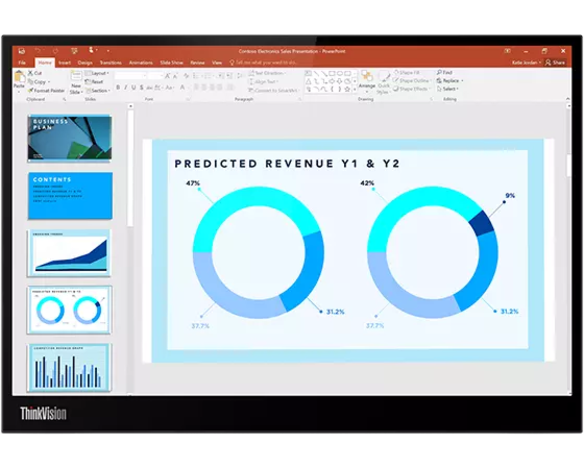
Use the M14d to work through the USB-C-only buying route. First confirm the laptop’s video output. Next choose whether the laptop will power the screen or an external supply will feed the pass-through setup. Finally check whether the modest lift range puts the screen where you want it. A sharp compact panel can still be the wrong choice if the connections or viewing position do not fit your routine.
Pros
- A compact document-oriented format: Its 14-inch 16:10 panel suits a second-page or reference-window role without moving to a wider 15.6-inch body.
- Low stated monitor weight: Lenovo’s approximately 0.6kg figure includes the stand, useful when deciding what you will carry regularly.
- A documented pass-through route: Up to 65W support gives compatible buyers a specific charging capability to check against their laptop.
Cons
- No native HDMI input: It is an awkward starting point for a device whose convenient video output is HDMI.
- Limited vertical adjustment: Up to 11mm lift will not raise it to every laptop-stand height.
- A 60Hz ceiling: Choose another display if higher-refresh gaming is the central requirement.
Our recommendation
Shortlist the M14d when you have confirmed USB-C video and want a compact companion for documents. Include any required charger in the purchase plan: Lenovo’s PSREF package omits an adapter. Choose the ASUS example instead when HDMI input or a higher refresh ceiling solves a real requirement.
Search Amazon for Lenovo ThinkVision M14d
Confirm M14d and the regional model code in the seller’s details. M14, M14t and other ThinkVision generations are separate products. This is a search link, not a verified offer.
Worked example: ASUS ZenScreen MB16AHG for HDMI and higher refresh
Consider it for: A mixed work-and-entertainment setup that needs HDMI input or can use a refresh rate above 60Hz.
Here the first buying advantage is a second video route. A source with HDMI can connect to the mini-HDMI input while the supplied adapter powers the display. That makes the ASUS a more natural example for mixed devices than a USB-C-only screen. If you use USB-C instead, retain the power plan: the manual specifically addresses insufficient source power.
Pros
- HDMI alongside USB-C: Useful when your devices do not share one convenient video connector.
- Up to 144Hz: Worth considering for compatible high-refresh use, rather than paying for it solely to hold a static reference page.
- A separate mounting option: The ¼-inch tripod socket provides an alternative to the fold-out stand with a compatible mount.
Cons
- HDMI adds a power lead: This route needs the supplied adapter as well as the video cable.
- No built-in height adjustment: A mount is a separate item if tilt alone does not provide a useful position.
- No speakers: Plan headphones or another audio device when entertainment is part of the purchase.
Our recommendation
Choose the MB16AHG when its extra video input or refresh capability matters enough to justify the larger body and accessory plan. For a compact reference screen used mostly for text, the Lenovo approach is easier to justify. Do not choose the ASUS expecting its two USB-C inputs to replace a laptop charger; that charging-output capability is not established by the cited documentation.
Search Amazon for ASUS ZenScreen MB16AHG
Match the full MB16AHG suffix. Other ZenScreen models have different ports, panels and power behavior. Confirm local package contents; ASUS notes regional variation.
4. Make the final purchase a setup, not just a screen
- Record the exact source device and video port. Check your computer’s external-display limits too, especially if another monitor is already attached.
- List every cable and power source. Keep video compatibility, monitor input power and laptop charging as separate checks.
- Measure body and stand clearance. Include cable bends and the surface behind the screen, not just diagonal size.
- Choose comfortable scaling and position. Make readability the target rather than the highest pixel count available.
- Match the retail model and bundle. Read the seller’s exact suffix, condition, adapter and cable contents, plus return terms. A manufacturer page does not confirm current retailer stock.
Once those checks are settled, our portable monitor shortlist offers other configurations to compare. Keep the same checklist even when a different model looks attractive.
Portable monitor buying FAQ
Will any USB-C laptop work with a USB-C portable monitor?
No. For the direct connection described here, verify video support on the particular source port, support at the monitor input and a suitable cable. The USB-C connector shape alone does not establish DisplayPort Alt Mode or sufficient power.
Does a portable monitor charge my laptop?
Only when the monitor documents an appropriate power-output or pass-through function and the complete setup supports it. The M14d documents up to 65W pass-through with external power. A USB-C power input on a display is a different function.
Can I use HDMI and skip the monitor power adapter?
Follow the exact model’s instructions. For the MB16AHG, ASUS explicitly requires the included adapter when connecting by HDMI. The video cable is not the complete setup.
Is a higher-resolution portable monitor always better for work?
No. It needs to provide readable text at comfortable scaling, fit the space and work with your connection. A small high-resolution screen and a larger FHD screen can solve different needs; compare the physical size as well as the pixel count.
Can I use these examples for touch input?
Neither example is presented here as a touch monitor. If touch or pen input is essential, choose an exact model whose manufacturer documents that function and compatibility with your operating system.
Sources and research method
We checked the following primary sources on October 16, 2026. This is a specification-based buying guide, not hands-on testing. Advice about carrying, cable management, screen position and which trade-off to accept is our editorial judgment. We did not measure brightness, color accuracy, battery impact, input lag or charging power.
- VESA DisplayPort FAQ and Microsoft USB-C guidance: video capability and compatibility checks.
- Lenovo M14d US product page: exact regional identity and photo; M14d PSREF specifications and manufacturer datasheet: panel, ports, mechanics, package and pass-through.
- ASUS MB16AHG product page, US technical specifications and English user guide: panel, inputs, positioning, photo and power instructions.
Manufacturer specifications can change and bundles vary by region. The current Lenovo retail page title uses a conflicting “WXGA+” label; this guide follows the exact M14d PSREF resolution of 2240 × 1400. Check the model and written seller specifications before buying. No verified Amazon ASIN, live offer, numerical price or customer rating is claimed here.
Affiliate disclosure: As an Amazon Associate, The Gear Audit earns from qualifying purchases. If you buy through our Amazon links, we may earn an affiliate commission at no extra cost to you. Read our full affiliate disclosure.