USB-C Hub Pass-Through Charging: Why 100W In Can Mean 85W Out
By The Gear Audit Team · Manufacturer and support sources checked November 13, 2026
Quick answer
Check a hub’s stated power delivery to the laptop before buying a stronger charger. The Anker 555 A8383 accepts up to 100W but specifies up to 85W to the laptop. Plugable’s USBC-7IN1E accepts up to 100W and specifies up to 92W to the laptop. The difference covers power reserved by each hub; neither input label promises that wattage at the computer.
For a laptop whose documented charging requirement exceeds the hub’s output, use a suitable higher-output hub or dock, or connect the laptop’s recommended charger directly. Keep a working hub if direct charging solves the problem and using two laptop ports is acceptable.
Read the power path before the headline wattage
A pass-through setup has several parts: wall charger, charger-to-hub cable, hub and laptop. Write down the power specification for each, including which laptop port accepts charging. A USB-C connector alone does not establish the charging capability you need.
Record two separate hub figures: maximum charging input and maximum delivery to the host laptop. Then check the laptop maker’s recommended power source for your exact model. The adapter supplied with a laptop is a useful reference, although its rating is not a measurement of the computer’s continuous power use.
Microsoft’s USB-C troubleshooting guidance identifies an insufficient charger, an unsuitable cable, the wrong charging port and charging through a hub or dock among the possible causes of slow charging. A warning does not identify which purchase would fix your setup.
Check the charger port you will use with everything connected. For a charger with several outputs, read its published simultaneous-use allocation. A wattage printed on the front is insufficient evidence of the power assigned to your chosen USB-C port when your phone is also attached.
Two 100W-input hubs with different laptop limits
| Model | Maximum PD input | Maximum to laptop | What to check before buying |
|---|---|---|---|
| Anker 555 USB-C Hub, A8383 | 100W | 85W | Anker reserves 15W for operation. Its PD input and USB-C data connection serve different jobs. |
| Plugable USB-C 7-in-1 Hub with Ethernet, USBC-7IN1E | 100W | 92W | Plugable documents the host limit separately and requires a compatible charger and cable. |
These are published ceilings, not measured charging results. The 7W difference does not establish a battery charging-time advantage, and neither hub is automatically compatible with every laptop. If the computer needs more power than either can deliver, this comparison points you toward a different charging arrangement.
For display and connection choices beyond charging, see our USB-C hub versus docking station guide. Our Plugable travel-hub comparison covers the port choice between the named Plugable variants. Those broader decisions remain separate from the host-power limit here.
A 90W requirement changes the purchase
Suppose your laptop maker explicitly calls for at least 90W delivered over USB-C for your intended use. This is a hypothetical requirement, not a claim about a particular laptop.
The A8383’s 85W ceiling falls 5W short. Even with a suitable 100W input, it cannot meet that stated target. Buying a 140W wall charger solely to push more power through this hub would leave the same host-output ceiling.
The USBC-7IN1E’s 92W maximum clears the hypothetical target by 2W on paper. That narrow margin supports further compatibility checking; it does not guarantee the negotiated power, recharge speed or behavior under your workload. Confirm the laptop maker’s requirements and the hub’s current compatibility guidance before paying.
We would try the laptop’s recommended charger directly first if the current hub otherwise works. If that arrangement charges as expected, decide whether a single laptop connection is worth replacing the hub. If a spare charging port is unavailable, shortlist products by their stated host output, then check the rest of the setup.
Do not extend the subtraction to every charger
The published 100W-input examples do not establish a universal formula at lower input power. We would not promise that every 65W charger produces exactly 50W through the Anker or 57W through the Plugable. Use the manufacturer’s guidance for that charger and hub combination, or record what your computer reports with your actual setup.
Anker 555 A8383: suitable when 85W covers your needs
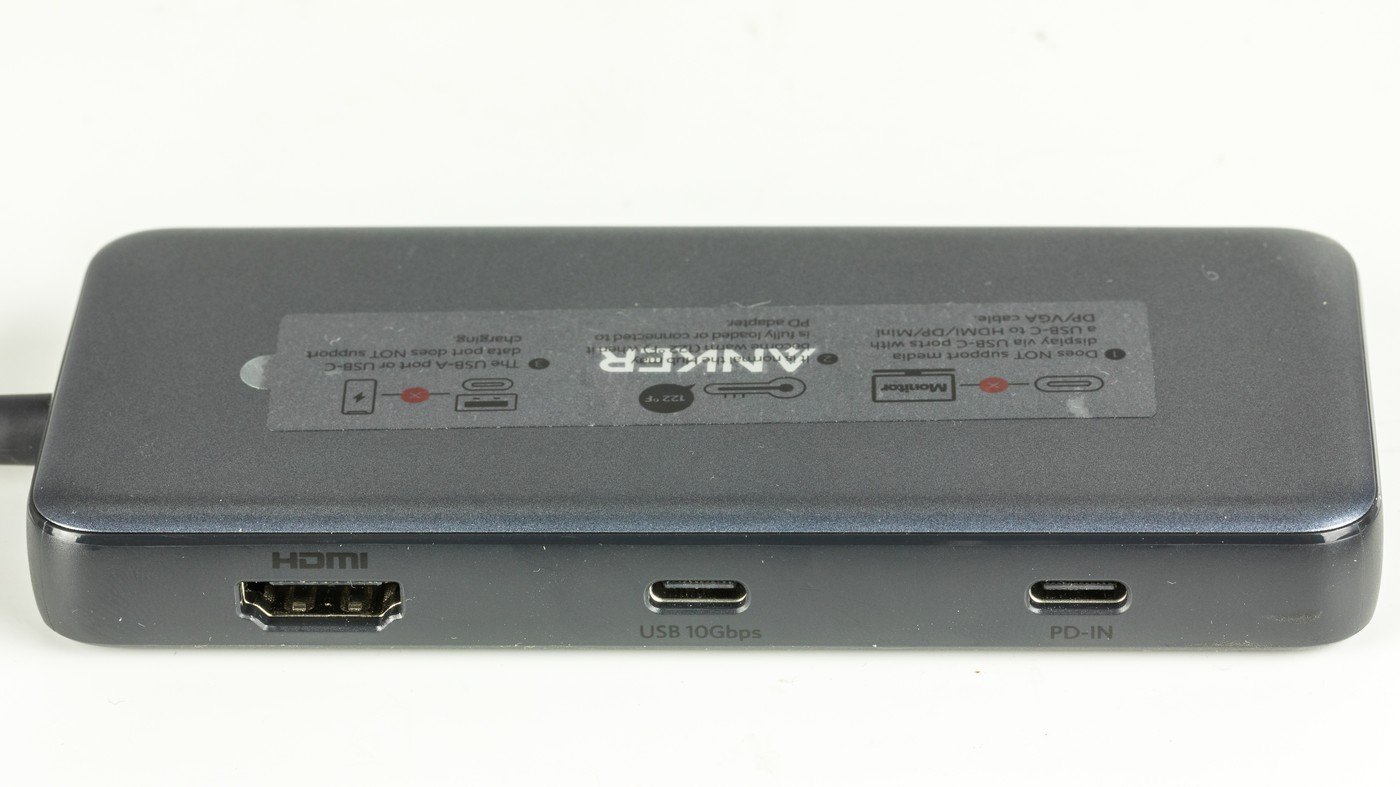
Anker’s current A8383 specifications distinguish the PD input from a USB-C data port. The data port is not a second charging input. The manufacturer also says a wall charger is unnecessary for ordinary hub operation; add one when you want to charge the host laptop. A charger is not included.
Reasons to consider it
- The manufacturer states the laptop output separately, so you can reject an unsuitable power budget before buying.
- It can suit a portable setup where the documented host limit covers the laptop’s requirements and its other connections match your equipment.
Reasons to choose something else
- A documented requirement above its host-output limit calls for a different hub or direct charging.
- If you need to buy the hub, wall charger and suitable cable together, compare that complete cost with an appropriate dock that includes its power supply.
Our recommendation: consider this exact model when its charging limit and port layout fit your laptop. Owners whose existing hub works with separate direct charging have a practical reason to keep it. We have not tested the A8383 or established a charging-speed advantage.
Search Amazon for Anker 555 A8383
This is a model search. Check A8383, seller, package contents, current price, stock and return terms. We have not verified a current Amazon listing or ASIN.
Check a slow-charging setup before replacing it
- Start with direct charging. Use the laptop’s recommended charger and suitable cable directly at a supported charging port. If the problem persists, investigate the laptop, charger and cable before buying a replacement hub.
- Check the hub’s charging input. Use the port identified as PD input. Do not assume another USB-C data port accepts a charger.
- Compare power delivered to the laptop. Look for a host-output figure in the technical specifications. Compare it with the exact computer’s requirements.
- Check the cable and charger allocation. Both must support the intended power. Test with other charger outputs unused, then check the manufacturer’s allocation for your normal combination of devices.
- Follow the hub’s connection procedure. Plugable’s USBC-7IN1E guidance says to connect the charger to the hub before reconnecting the hub to the laptop when charging does not start.
- Check your normal workload. Record the charging message and battery behavior during the work you need to do. A successful idle charging check does not establish what happens during a demanding session.
Our USB-C charging cable versus data cable guide explains why the desired charging rating and data capability need separate checks. Save files before reconnecting a hub that also carries your storage or display connections.
Frequently asked questions
Will a 140W charger make this Anker hub deliver 100W?
No. Its documented host ceiling remains 85W. A stronger charger cannot raise that limit. Check the hub’s permitted input and the laptop’s requirements before changing the charger.
Does a slow-charger warning mean the hub is defective?
No. Microsoft lists several possible causes, including the charger, cable, port and intermediate hub or dock. Direct charging with the recommended equipment is a useful first comparison.
Should I replace a hub that charges slowly during heavy work?
First check whether direct charging solves the problem. Keep the hub if that arrangement suits your desk. Replace it when you need one connection and can identify a compatible product that supplies the required host power.
Can I use the hub without a wall charger?
For A8383, Anker says yes for ordinary hub operation. That does not make the hub an independent source of laptop power. Check your own model’s instructions.
Sources and method
We checked the primary sources below on November 13, 2026. This is document-based buying advice. The 90W example and purchase priorities are editorial reasoning. We did not test either hub, measure charging or battery drain, verify a particular laptop combination, or compare current retail offers. Read our research methodology.
- Anker: 555 USB-C Hub, model A8383: PD input, host output, reserved power, distinct port roles and charger exclusion.
- Plugable: USBC-7IN1E charging requirements and troubleshooting: host limit, compatibility conditions and reconnection sequence.
- Microsoft: Fix USB-C problems in Windows: possible slow-charging causes and equipment checks.