How to Choose a Mesh WiFi System: Complete Buyer’s Guide (2026)
By The Gear Audit Team · Manufacturer-source research: October 19, 2026 · US-market buying guide
Quick answer
Choose a mesh system around where its nodes can go, how they connect and which device will route your network. Check those three things before buying a larger pack or a newer Wi-Fi generation. For a home with Ethernet between rooms, prioritize wired backhaul and enough spare ports. Without cables, identify open locations where wireless nodes can still reach each other.
The TP-Link Deco X55 and standard eero 7 below illustrate two buying paths. They are worked examples, not a measured performance ranking. A compact home already served by one well-placed router may not need mesh.
1. Map the rooms and the actual problem
Start with a sketch showing the modem or fiber ONT, the existing router, Ethernet wall sockets, power outlets and the rooms where connections fail. Mark what you actually do there: a work call at a desk is a different requirement from occasional browsing in a hallway.
Before replacing equipment, compare the same device near the router and in the problem room. If possible, also check the internet connection over Ethernet. If service is poor even beside the router or over a cable, investigate the internet service and existing equipment first. More wireless nodes are an expensive guess when the underlying fault is elsewhere.
- One distant room: check whether you can move the router or run Ethernet to that room before committing to a whole-home kit.
- Several separated rooms or floors: map potential node locations and the links between them.
- A stationary office or gaming setup: consider a wired connection to that device as well as Wi-Fi coverage for phones.
- Already adequate coverage: keep the current setup unless a specific capacity, feature or support need justifies replacing it.
Our standalone Wi-Fi router comparison is the more relevant next step if the sketch suggests one central router could do the job.
2. Choose the network layout before the product tier
On a phone, swipe the table horizontally. Keyboard users can focus the table region and scroll it.
| Your situation | Prioritize | Useful example or next step | Compromise to accept |
|---|---|---|---|
| Ethernet between rooms; gigabit ports are enough | Wired backhaul and spare LAN ports | Deco X55: three Gigabit ports per node | No multi-gigabit wired path through an X55 port |
| You need a wired path above 1 Gbps | Multi-gigabit ports throughout the path, including the switch | eero 7: two 2.5 GbE ports per node | Few spare sockets; a switch may be part of the purchase |
| You cannot cable the nodes | Viable open placement and documented wireless backhaul behavior | Sketch the links first; compare radio bands and return conditions | Walls and the wireless links remain constraints |
| You must retain an existing router | AP or bridge mode, its feature losses and approved wiring | Deco AP mode and eero bridge mode have different topology rules | Some mesh gateway features become unavailable |
| One router can cover the home | Position and the features you actually need | Investigate the single-router route | You may still need a cable for one awkward room |
3. Decide how the nodes will connect
Wired backhaul: use existing cabling deliberately
Backhaul is the connection between mesh nodes. Ethernet backhaul carries that traffic over a cable rather than a wireless hop. TP-Link supports a mixture of wired and wireless Deco nodes, so one available cable does not commit you to wiring every room. Check each node’s connection type in the app after setup. See TP-Link’s backhaul and wiring guide.
Our recommendation: if the difficult room has a usable Ethernet run, put that asset at the center of the buying decision. Confirm where the cable terminates and whether its switch is suitable. Do not assume every wall socket is already connected or that buying a fast mesh kit upgrades an older switch.
Wireless backhaul: put a node before the dead zone
A wireless satellite needs a usable connection upstream as well as a good location for nearby devices. eero advises placing a node between the gateway and the dead zone, keeping units out of cabinets and away from major obstructions. Building materials and layout change the result; a manufacturer’s coverage area is not a floor-plan guarantee. eero’s placement guidance explains the practical constraints.
For an upstairs office, look for a viable intermediate location or a cable route. A node on the office desk is useful only if its own upstream connection works. Buy a pack size that matches plausible positions, then verify those positions during the return window. There is no reliable universal “one node per floor” rule for every building.
A cable into a satellite is not necessarily wired backhaul
A computer plugged into a satellite can still depend on Wi-Fi if that satellite connects wirelessly to the gateway. To remove that wireless hop, the satellite itself needs an Ethernet path upstream. eero makes this distinction in its Ethernet-port and switch guidance.
4. Count the ports left after connecting the network
Make a port budget for each location. Subtract the internet uplink at the gateway, any wired backhaul connections, and each device you want to cable. Count physical sockets as well as their speeds.
For example, two sockets can both be occupied by the gateway’s internet connection and its connection to a downstream switch or node. Three sockets leave one more direct connection in that same arrangement. Neither count tells you the end-to-end speed by itself.
- At the gateway: list the internet hand-off, switch and any nearby desktop or hub.
- At a satellite: list its upstream cable, local devices and any onward wired node.
- For multi-gigabit use: verify the WAN port, LAN port, switch, device adapter and cable path. A 1 Gbps link remains a constraint even when another box has 2.5 GbE sockets.
eero instructs users to put an expansion switch after the gateway eero, not between the modem and gateway. Follow the selected system’s wiring rules rather than treating every diagram as interchangeable.
5. Decide which device will be the router
If the ISP box combines a modem and router, decide whether it will keep routing or hand that job to the mesh system. Confirm the provider’s requirements before changing equipment that also supplies phone or TV services. Ask which device will manage addressing, port forwarding and household controls.
Mesh in router mode
The mesh gateway manages the network. For Deco’s router-mode wired layout, satellite nodes connect downstream of the main Deco, directly or through its LAN-side switch. A useful planning sequence is internet hand-off → mesh gateway → LAN switch → wired satellites/devices. TP-Link’s wiring guide supplies the model-family diagrams; this sequence does not replace ISP setup instructions.
Existing router stays; mesh supplies Wi-Fi
Deco’s access-point mode retains the existing router as gateway. TP-Link permits AP-mode satellite cabling to the existing router or another Deco. Its mode guide lists losses including Deco parental controls, QoS and port forwarding; features can vary with hardware and firmware. Read the Deco mode comparison before paying for a function you intend to disable.
eero is different: its bridge mode also retains upstream routing, but connections must still funnel through one gateway eero. It does not permit you to copy Deco’s more flexible AP wiring arrangement. Some eero Plus functions, including Advanced Security and content filters, are unavailable in bridge mode. See eero’s bridge-mode requirements.
Our advice: draw the final layout and write down the lost features before choosing a system. “Supports bridge mode” is only the start of the compatibility check.
6. Choose Wi-Fi 6, 6E or 7 for a specific benefit
- Wi-Fi 6: remains a reasonable candidate when its ports and layout meet your needs. The X55 example uses 2.4 and 5 GHz.
- Wi-Fi 6E: adds access to 6 GHz. A compatible client, router and supported software/region are needed to use that band; Intel’s 6 GHz requirements illustrate why the laptop matters too.
- Wi-Fi 7: can add features such as multi-link operation, but verify the actual radios. Standard eero 7 is dual-band and has no 6 GHz radio. A Wi-Fi 7 label alone does not establish tri-band capability.
Read the band list and the backhaul description separately. If a third band matters to your planned wireless layout, verify how that model uses it. Do not buy from the Wi-Fi generation or the combined AX/BE marketing number alone; neither is a promised speed for your laptop in the far bedroom.
If your brief specifically calls for a tri-band Wi-Fi 7 kit, continue to our Deco BE63 versus eero Pro 7 comparison. That article addresses those two models; this guide addresses how to define the brief.
Worked example: TP-Link Deco X55 for a gigabit wired layout
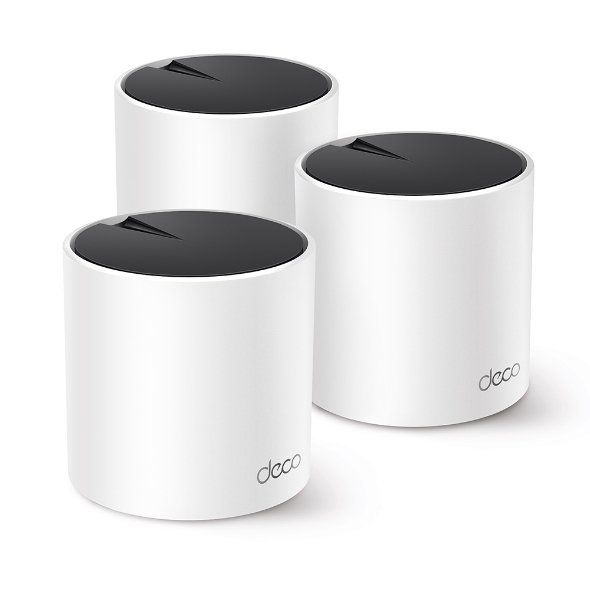
Best fit: a household whose planned wired connections fit Gigabit Ethernet and which values several direct sockets at each node.
Pros
- Three Gigabit WAN/LAN sockets per unit support a practical port budget.
- Ethernet backhaul can use existing room cabling.
- Router and AP modes accommodate different gateway arrangements.
Trade-offs
- Gigabit ports constrain a wired path intended to exceed 1 Gbps.
- Dual-band Wi-Fi 6 supplies no 6 GHz radio.
- AP mode gives up gateway controls rather than preserving every app feature.
Our recommendation: shortlist X55 when its port speed is sufficient and cabling makes the layout work. Choose something else for an above-gigabit wired brief or a required 6 GHz band. Confirm the US pack count and hardware version; this is not an X55 Pro recommendation.
Search Amazon for TP-Link Deco X55
Worked example: standard eero 7 for 2.5 GbE connectivity

Best fit: a buyer seeking 2.5 GbE connections who accepts an app-managed system and has planned the switch location.
Pros
- Both Ethernet sockets are 2.5 GbE, avoiding an unequal-speed port pair.
- Supports wired backhaul as well as wireless node connections.
- Wi-Fi 7 includes MLO support for compatible devices.
Trade-offs
- Two sockets can leave none free after the gateway’s uplink and downstream connection.
- Its dual-band radios omit 6 GHz.
- Bridge mode retains the gateway topology requirement and removes some advanced functions.
Our recommendation: consider eero 7 when the faster wired ports solve a real requirement. Budget for a suitable switch if needed. Skip it when you require 6 GHz, more direct sockets or an AP layout incompatible with its gateway rule. Setup and management require the eero mobile app.
Search Amazon for standard eero 7
Before ordering: write a one-page purchase brief
- Name the rooms and activities. Record where you need dependable calls, transfers or streaming.
- Draw the links. Identify wired runs, wireless links, power outlets and the gateway position.
- Count ports and their speeds. Include any switch and device adapter in the full purchase.
- Choose the routing device. Check ISP requirements, approved topology and feature losses.
- Match the exact offer. Confirm model, US market, hardware revision where specified, and pack size. Product-family names and photographs alone do not establish the seller’s contents.
- Plan acceptance during the return window. Use the same devices and locations to check calls and everyday tasks after installation. Check the app’s backhaul status; move a wireless satellite before buying another one.
Compare the complete cost of nodes, cabling, switches and any subscription features you actually want. We have not verified live offers or subscription prices, so this guide assigns no invented savings or payback period.
Frequently asked questions
How many mesh nodes do I need?
Start from viable locations and the rooms you need to serve. Floor area alone cannot resolve wall materials, floors or the position of the internet connection. Check the manufacturer’s planning guidance and confirm performance in your own layout.
Is Wi-Fi 7 always tri-band?
No. Standard eero 7 uses 2.4 and 5 GHz. Read the model’s band list if 6 GHz is part of your buying brief.
Does Ethernet from my PC to a satellite remove wireless backhaul?
No. The satellite must also have a wired upstream connection. Otherwise the PC’s traffic still crosses the satellite’s wireless link to the rest of the network.
Can I keep the ISP router?
Often, but check the selected system’s AP or bridge mode, topology and lost functions. Deco and eero do not have identical rules. Resolve phone, TV and provider-specific requirements before changing the ISP equipment.
Can I mix brands to expand one mesh network?
Do not assume you can. Even TP-Link’s Deco, Archer and Omada families do not form one unified mesh together, according to its mesh compatibility guide. Confirm the exact ecosystem and supported models before buying an extra node.
Will a mesh kit make my internet plan faster?
It cannot increase the service speed your provider supplies. It may address an in-home coverage problem, but the internet link, network path and client still constrain results. Investigate the baseline before upgrading.
Research method and primary sources
We checked the following manufacturer pages on October 19, 2026. The US Deco X55 and standard eero 7 illustrate buying decisions; they are not a complete market shortlist. Recommendations and purchase checklists are our editorial judgments from documented features and setup rules. We did not install these systems, measure throughput, latency or coverage, or verify Amazon ASINs, live prices or customer-review totals.
Manufacturer radio rates and coverage claims are not our measured results. Firmware, hardware revision, client capability and ISP requirements can change feature availability. Check the exact unit’s current support documents. Product images are manufacturer exterior illustrations, not proof of the contents of a particular retail offer.
- TP-Link US Deco X55 product page and specifications: radio bands, ports, working modes and product image.
- TP-Link Deco Ethernet backhaul guide (updated April 17, 2026): mixed backhaul, app checks and wiring rules.
- TP-Link router/AP mode comparison: gateway responsibilities and unavailable AP-mode functions.
- eero 7 hardware and setup documentation; eero 7 US product page: ports, bands, MLO, mobile app and model boundaries.
- eero placement guide; eero switch and port guide; eero setup guide: node positions, downstream switches and Ethernet backhaul.
- eero bridge-mode guide: topology and feature losses.
- Intel’s 6 GHz client requirements; TP-Link mesh compatibility guide.
Buying-link note: both buttons open clearly labelled Amazon searches, not verified individual offers. Check model, market, pack count and seller details; results may include other products.
Affiliate disclosure
As an Amazon Associate, The Gear Audit earns from qualifying purchases. We may earn an affiliate commission when you buy through our links, at no extra cost to you. Full affiliate disclosure.