Password-Protected Portable SSDs: Mac and Windows Buying Guide
By The Gear Audit Team · Samsung, Microsoft and Apple documentation checked November 14, 2026
Quick answer
For a drive moving between your own Mac and Windows computers, consider a password-capable SSD only after confirming that its unlock software works on both machines. The Samsung T7 Shield is one candidate. For Windows-only use, first check whether BitLocker can protect a drive you already own. For Mac-only use, an encrypted Mac volume can avoid a separate drive-maker utility.
The buying decision is who must open the files, on which computers, and with what installation permissions. A password feature that you cannot use at the destination makes a poor handoff drive. Keep an independent copy before changing the format or security setup.
Compare the unlock route before choosing capacity
A freelancer carrying documents between two personal computers can install software on both. A recipient using a managed work laptop may have no such permission. Those situations need different purchase decisions even when the files fit on the same small SSD.
On a narrow screen, scroll the table horizontally. Keyboard users can focus its region and use the arrow keys.
| Approach | Best fit | What to establish first | Buying consequence |
|---|---|---|---|
| Drive-maker password feature, such as T7 Shield security mode | Your own Mac and Windows computers | Compatible unlock software and an accessible file system on each host | A conditional cross-platform option; do not assume software-free unlocking |
| Windows BitLocker | A Windows-focused workflow | Eligible Windows edition, administrator access and a saved recovery key | Check a suitable existing drive before paying for another password-capable SSD |
| Encrypted Mac volume | Files staying within a Mac workflow | Appropriate encrypted format and a protected copy before any erase operation | Choose storage capacity and connection for the Mac; APFS is unsuitable for ordinary Windows handoff |
These are workflow choices, not a ranking of resistance to attack. We have not audited their encryption implementations or tested a protected drive on current operating systems.
Mac and Windows: software permission comes first
Samsung’s T7 Shield manual describes password-based security mode and a software unlock on connection. It also documents exFAT read/write access on Windows and Mac. Both pieces matter: unlocking exposes the storage, while the file system determines how the computer can use it.
For a new purchase, check Samsung’s current Magician support information. It lists the T7 Shield and Windows and macOS support, with features varying by model and operating system. The older product manual describes Portable SSD Software 1.0; its historical minimum OS versions should not be treated as today’s software compatibility list.
Our recommendation is conditional: shortlist the Shield when you control both hosts and can confirm the current supported software there. Before carrying important files, rehearse unlocking, copying, ejecting and reopening harmless sample files on each computer. Include the actual destination machine, rather than testing two computers at home and assuming a client’s laptop will behave identically.
When this route makes sense
- You regularly move a drive between a Mac and a PC that you manage yourself.
- You prefer one documented drive-maker unlock route across those computers.
When to choose another route
- A recipient cannot install or run the required software.
- Your organization requires a particular encryption product or key-management process.
In either case, agree on the receiving workflow before buying hardware. For work files, use the organization’s approved transfer method. Buying a faster SSD will not resolve a software restriction.
Windows only: check BitLocker before replacing a working drive
Microsoft’s BitLocker instructions cover manual drive encryption on Windows Pro, Enterprise and Education, with an administrator account. Removable drives appear under BitLocker To Go. Windows Home does not provide this management feature; do not budget around it appearing after you plug in an SSD.
For a Windows-focused workflow, our first recommendation is to check whether the existing drive appears in Manage BitLocker and meets your needs. A new SSD’s advertised hardware encryption is not a prerequisite for considering this Windows route. Confirm the intended receiving computers and organizational policy before committing the files.
Save the recovery information somewhere separate and retrievable. Microsoft’s BitLocker FAQ explains recovery storage and the need for the required authentication to recover access. Test that you can retrieve your recovery record before relying on it. This guide does not select BitLocker as an established Mac handoff solution.
Mac only: an encrypted volume may cover the job
For files staying on Macs, Apple’s Disk Utility guide points to instructions for protecting an external device with an encrypted format. The documented erase-and-format process removes the selected device’s contents. Copy anything you need to another protected location first, and confirm the selected physical drive carefully.
Our recommendation is to consider a suitable drive you already own before choosing a different SSD for its vendor password feature. You still need enough capacity, the right connection and a separate copy. Samsung’s file-system table identifies APFS as readable and writable on Mac and unrecognized by Windows; a drive formatted that way is a poor choice for ordinary Mac-to-Windows exchange.
If Windows access becomes part of the job later, revisit the whole arrangement before reformatting. Changing the file system is a separate decision from buying a USB-C cable.
Samsung T7 Shield 1TB Black: a conditional cross-platform candidate
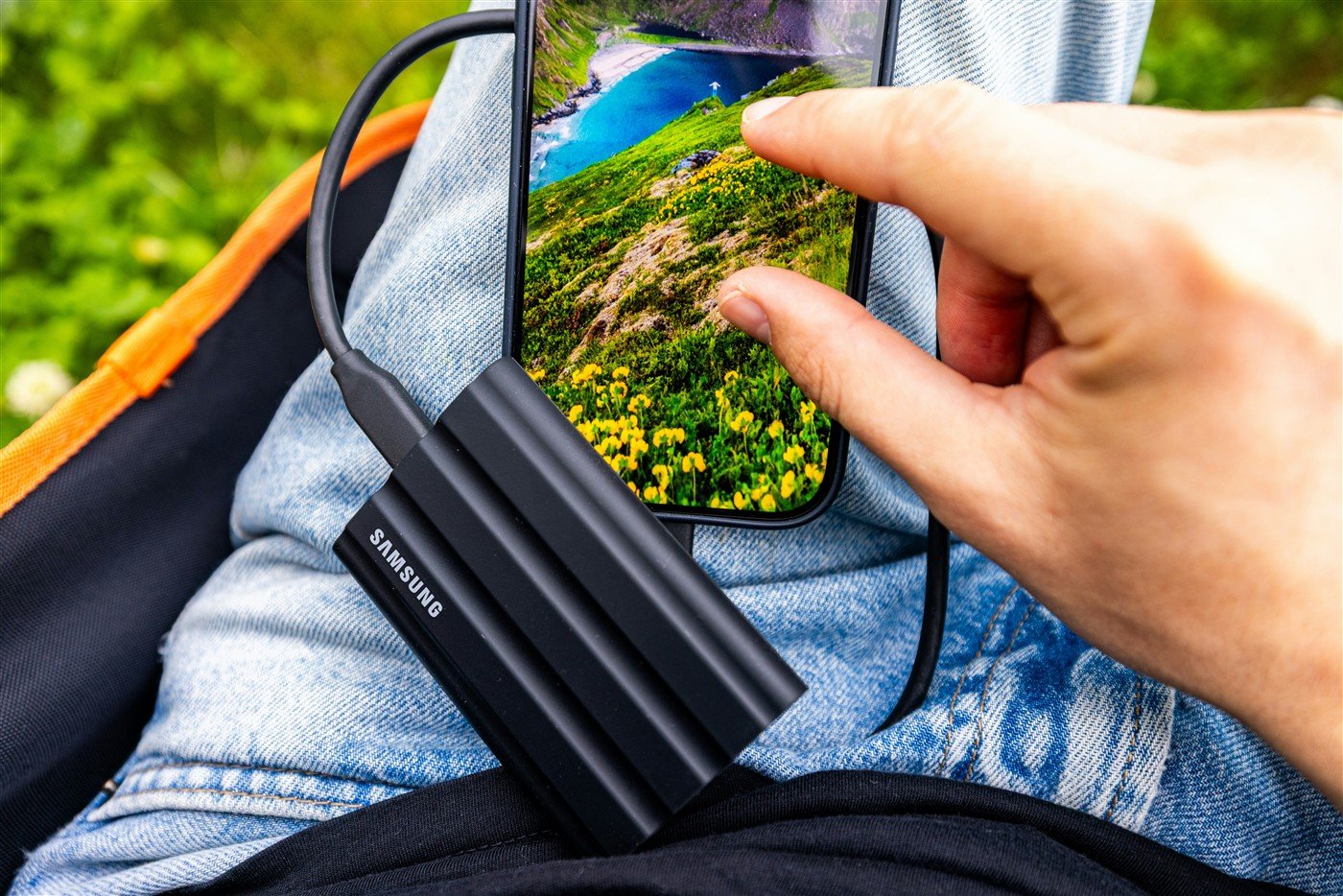
Best for: a buyer carrying files between compatible, personally managed computers who has established the unlock route. The exact US buying example is 1TB Black, MU-PE1T0S/AM, identified on Samsung’s US product page.
Samsung’s data sheet specifies AES 256-bit hardware encryption, a USB 3.2 Gen 2 10Gbps interface, and USB-C-to-C and USB-C-to-A cables. Its 59 × 88 × 13mm enclosure is a practical size for a small accessory pouch. These specifications describe the product; they do not establish that your particular computers will unlock it successfully.
Reasons to consider it
- A documented password feature fits the protected carry-drive role when its software is supported.
- Both cable types can help when your two computers use different USB port shapes.
- The compact enclosure suits frequent physical handoffs without adding a large desktop drive.
Tradeoffs to accept
- The software unlock requirement can disqualify a locked-down destination computer.
- Samsung documents no forgotten-password recovery option; factory restoration loses the stored files.
- Its 10Gbps interface is a lower ceiling than a compatible 20Gbps drive. That matters for some large-transfer workflows, independently of password protection.
Our recommendation: buy this configuration only when 1TB fits your carried working set and the receiving workflow passes your rehearsal. Choose a larger capacity for more files, or keep a suitable existing drive when your operating system already supplies the protection route you need. For connection and enclosure differences, see our T7 Shield versus T9 comparison; that article compares black 2TB models, not the 1TB buying example here.
Search Amazon for T7 Shield 1TB Black
This is a model search. Confirm MU-PE1T0S/AM, 1TB, Black, condition, seller, included cables and warranty eligibility. No exact Amazon offer, price or availability is verified.
Before buying or putting important files on the drive
- Name every receiving host. Check the actual OS version, available port, unlock-software support and permission to run it. Include a recovery computer if you depend on one.
- Choose the protection route. For managed work devices, follow the organization’s approved method. For personal devices, compare the three approaches above before spending.
- Protect the originals. Keep another independent copy before an erase, format or security change. A forgotten password and a failed drive are separate reasons to need that copy.
- Plan password and recovery storage. Keep secrets separate from the carried drive and use an appropriate password manager or approved recovery process. A note packed in the same pouch defeats the purpose of separating access from the hardware.
- Rehearse with harmless files. Confirm the expected password prompt after disconnecting and reconnecting, then open the copied files on each intended host. Do this before leaving for a handoff.
Buy capacity for the files you actually carry, with space for the next batch. A drive containing your sole copy remains a single point of loss, whether it is password-protected or physically rugged. Our portable SSD and hard-drive guide covers broader storage roles.
Portable SSD password questions
Does exFAT itself password-protect files?
No. In this buying decision, exFAT addresses file-system access across computers. The selected security feature supplies the separate unlock requirement.
Will the T7 Shield ask for a password straight out of the box?
Do not assume that. Samsung documents security mode as optional. Confirm it is enabled and that the expected prompt returns during your rehearsal.
Can I recover the T7 Shield files if I forget its password?
Samsung’s manual states that there is no password-recovery option and that factory restoration loses user data. Keep another protected copy and a reliable password record.
Should I buy the faster SSD for better encryption?
A higher USB speed rating does not establish stronger protection. Choose the unlock and recovery workflow first, then decide whether your actual transfers justify more bandwidth.
Does password protection stop someone copying files after I unlock the drive?
Do not use a drive password as a recipient-control system. Hand over only files the recipient is authorized to receive, and follow your organization’s access rules. This guide evaluates buying fit, not document-rights management.
Research method and primary sources
We checked documentation on November 14, 2026. Product and platform features are manufacturer statements. Route choices and the buying checklist are editorial advice. We did not test software installation, cross-platform unlocking, password recovery, transfer speed or resistance to attack. An AES specification is not our security certification. Apple’s instructions were checked through indexed official text. Read our research methodology.
- Samsung T7 Shield user manual, version 1.1: file systems, security mode, software unlocking and forgotten-password limits.
- Samsung T7 Shield data sheet, revision 2.0: hardware encryption, interface, dimensions, cables and model codes.
- Samsung Magician: current model and OS support; features vary.
- Microsoft: BitLocker Drive Encryption and BitLocker FAQ: editions, management and recovery.
- Apple: Disk Utility User Guide, including its storage-device password-protection instructions: encrypted format and erase warning.