USB-C Portable Monitor Power: One Cable or a Separate Charger?
By The Gear Audit Team · Primary documentation checked November 16, 2026
Quick answer
Buy for one-cable operation only after confirming video output, enough power from the host port and a suitable cable. If you need the monitor to charge your laptop, choose a model with documented pass-through and budget for an external supply. A laptop powering a screen is a different arrangement from a screen charging a laptop.
For short sessions away from an outlet, a host-powered screen can keep the kit small. For a longer desk session, we would favor a supported external-power arrangement, especially when brightness or laptop charging would otherwise be compromised. Check the exact monitor’s power instructions before buying a stronger charger.
Choose the wiring you want to carry
Count cables across the whole setup. “One cable” may mean one lead between laptop and monitor while a second lead still connects the monitor to a charger. Ask the seller which device supplies power in the advertised arrangement.
| Your situation | Power route | Reason to choose it | Reason to choose differently |
|---|---|---|---|
| Short document session without an outlet | Laptop sends video and powers the screen over USB-C | Fewer separate items to connect | The screen draws from the laptop battery; confirm the host’s output meets the monitor requirement |
| Monitor needs external power; laptop already has its own charger | Supported power adapter feeds the screen; video uses a separate connection | Keeps laptop charging independent of monitor pass-through limits | More leads and possibly another outlet or charger port |
| Travel desk with one available laptop USB-C port | External supply feeds a pass-through monitor; monitor sends power to laptop while receiving video | One occupied laptop port can cover display and charging | Monitor output may be lower than charger input, or below the laptop’s needs |
These are purchase routes, not promises that every monitor supports all three. Our general portable-monitor guide covers screen size, resolution and stand fit. This guide focuses on the power arrangement.
Check video and power separately on the host
For a direct DisplayPort Alt Mode connection, verify the specific laptop port, monitor input and cable together. Microsoft’s USB-C troubleshooting guidance makes that compatibility check explicit. A charger can provide power without providing a video signal. A charging wattage printed on a cable likewise does not establish its display capability.
VESA’s DisplayPort FAQ describes carrying video, USB data and charging through USB-C in supported configurations. It does not make those capabilities universal across USB-C sockets. If a hub sits in the path, check the function of its particular output. Its USB-C charging input is not evidence that it can drive a USB-C display.
Our buying advice is to start with the monitor’s supplied cable and a direct connection. Add a hub only after identifying the display output and power route you need. For cable shopping, see USB-C charging versus data cables.
Dell P1424H: a useful pass-through example

Best for: a buyer who wants to evaluate a compact USB-C screen against a clearly stated laptop-charging requirement. Dell’s US P1424H page identifies Dell part 210-BHRQ and manufacturer part MK7J6. It lists a 14-inch FHD IPS panel and two USB-C/DisplayPort 1.2 Alt Mode ports.
The Dell-authored May 2024 user guide, revision A01, page 20, requires video support and 7.5W output (5V/1.5A) from the connected host for normal use. Its plugged-in computer diagram specifies an electronically marked 5A USB-C cable. Page 21 gives these charging ceilings:
| Adapter connected to monitor | Maximum output to system |
|---|---|
| 90W or above | 65W |
| 65W | 45W |
| 45W | 30W |
A 65W laptop requirement paired with a 65W charger through this screen therefore deserves a different buying plan. We would either use a supported higher-input arrangement that meets the documented ceiling or retain the laptop’s direct charger. Do not calculate delivered power by subtracting a typical screen-consumption figure from the charger’s label.
Reasons to consider this setup
- The published input/output steps help you plan charging before purchasing an adapter.
- Pass-through can preserve a scarce laptop port for both picture and charging.
Tradeoffs to accept
- The monitor’s 65W ceiling rules out using this path to supply a laptop’s full 90W requirement.
- The two USB-C ports provide no HDMI input on the documented model; an HDMI-only source needs another solution.
Our recommendation: consider P1424H only when its documented charging path meets your computer’s needs and an exact listing is available. Choose a different screen or direct laptop charging when it would leave too little power. Dell’s US page showed unavailable messaging when checked; retailer stock remains unverified.
Model search, not a verified listing. Confirm P1424H, regional part, condition, included cable and return terms. Price, stock and ASIN are unverified.
ViewSonic VX1655: USB-C with an HDMI fallback
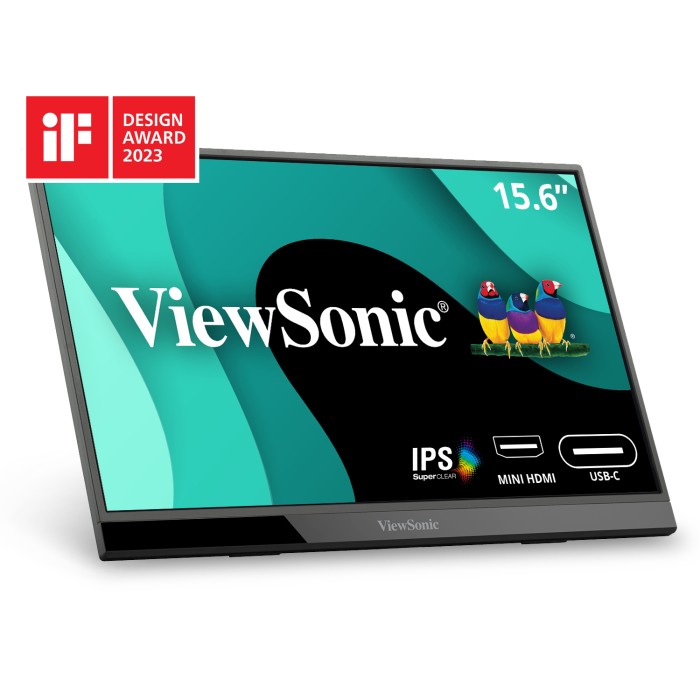
Best for: someone whose equipment mix needs mini HDMI as well as USB-C. ViewSonic’s VX1655 global sheet specifies a 15.6-inch FHD IPS screen, two USB-C inputs and mini HDMI. The US product page describes laptop-powered use and up-to-60W two-way power with a suitable external source.
Reasons to consider it
- Mini HDMI provides a separate video route for a compatible HDMI source.
- Externally supplied pass-through offers an alternative to running the display from the laptop battery.
Tradeoffs to accept
- A laptop needing more than the advertised 60W ceiling should keep an appropriate direct charging route.
- An HDMI setup still needs a separate monitor-power connection, so it adds to the cable kit.
Our recommendation: shortlist the exact VX1655 when its mixed inputs solve a real connection problem. Confirm the power-adapter package before ordering: the global sheet lists no adapter in its package contents, while the connection manual refers to an included adapter. We cannot assume the same bundle in every region.
Search Amazon for ViewSonic VX1655 FHD
Model search, not a verified listing. Match VX1655 without a 4K or OLED suffix, and confirm adapter, cables, seller and condition. Price, stock and ASIN are unverified.
Leave room for brightness and the rest of the desk
Power needs can change with settings. The VX1655 connection manual defaults phone-powered brightness to 15 on its control scale and warns that increasing it may cause flashing or shutdown. That setting is not a luminance measurement or a universal limit for portable displays.
The same manual gives conflicting USB-A power thresholds in different passages. We would use the supported adapter route for an uncertain HDMI-plus-USB-A setup and ask ViewSonic to confirm the exact configuration before buying around a USB-A output rating.
Make a list of the other devices you intend to connect. Do you need an SSD, a phone charging lead or a keyboard through a hub? Confirm the hub’s own power and port limits separately. A portable monitor’s two USB-C sockets do not establish that it is an accessory hub. Dell’s manual, for example, explicitly says USB data is unsupported on P1424H.
Our practical preference for a desk full of accessories is to keep laptop charging direct when that avoids an uncertain power chain. If you want pass-through, require a documented route for every device. With a multiport charger, check its stated output allocation with all intended ports occupied; do not budget from the total number on its box alone.
- Write the actual route. Record where video comes from, what powers the screen and what charges the laptop.
- Check the host’s output requirement. A laptop’s own charger wattage does not establish what its USB-C port can supply to a monitor.
- Match cable functions. Use the maker’s supported display cable and any specified current rating.
- Check the complete bundle. Include adapters and leads in the cost and bag space you compare.
- Try the intended workload while returns are available. Check your normal brightness, connected accessories and charging behavior. We have not tested that combination for you.
If power is settled and you need to compare other screen configurations, use our portable-monitor shortlist. For a permanent desk with network and accessory connections, our hub versus docking-station guide addresses that broader purchase.
Portable-monitor power questions
Does one USB-C cable mean my laptop will charge?
No. The laptop may be supplying the screen. Laptop charging requires an external power source and a supported output or pass-through path on the monitor.
Will a more powerful charger fix a missing picture?
Only if insufficient power caused the problem. Check video support and the display cable first. A power adapter cannot add DisplayPort Alt Mode to an unsupported host port.
Should I buy a charger equal to the monitor’s pass-through number?
Check the input/output instructions. The P1424H example above shows why equal numbers do not guarantee the stated output. Follow the exact model’s table instead of a generic wattage rule.
Can I power the monitor from a phone?
Confirm both video output and monitor power support for that exact phone. ViewSonic documents a restricted brightness setting for phone-powered VX1655 use; this does not establish compatibility with every phone.
Will external power make the display brighter?
It may remove a power-related restriction where the manufacturer documents one. It does not raise the panel’s specified brightness ceiling or prove outdoor readability.
Research method and primary sources
We checked manufacturer documentation on November 16, 2026. Specifications and power ceilings are manufacturer claims; setup recommendations are editorial judgment. We did not test these screens, measure charging or battery runtime, or verify an Amazon listing. Read our research methodology.
- Dell US P1424H / 210-BHRQ: regional identity and ports. Dell support manual index links the English guide. We read the Dell-hosted May 2024 A01 guide, pages 8, 20 and 21.
- ViewSonic VX1655 global sheet, US product page and connection manual: inputs, pass-through and brightness behavior. Regional adapter contents and the manual’s USB-A threshold conflict remain unresolved.
- Microsoft USB-C guidance and VESA DisplayPort FAQ: host, cable and video compatibility.